

Hostfully Assist,
from first click to daily use
Everything the Hostfully team needs to know about Hostfully Assist: how hosts get it, set it up and use it every day. Scroll through the chapters; each one ends with a quiz that unlocks the next, and passing them all earns a certificate.
HostBuddy behind, Hostfully in front
HostBuddy runs the AI behind the scenes; everything the host sees is Hostfully.
HostBuddy is the engine. It does all the AI work: it reads every guest message, writes the replies, knows each property, checks the host’s past conversations and spots what needs a person.

Hostfully is everything on screen: its colors, its style and its branding, inside the Hostfully platform hosts already know and use every day.
AssistThe AI from HostBuddy, the experience from Hostfully.What changes for a host
For a host, this is a big change. Hostfully now has its own AI that takes guest messaging off their plate: it answers for them, day and night, and only brings them in when something truly needs a person. And it all happens inside Hostfully, the platform they already know: no new login, nothing to install, no other product to learn.
Hostfully’s own AI
Hostfully now has an AI built in. The host switches it on from Integrations for the properties they choose, and it starts working inside the screens they already use.
Guests answered for them, 24/7
Hostfully AI replies to guests on the host’s behalf, day and night, in the host’s own tone. Fast, accurate answers, even at 3 a.m., marked “Sent by Hostfully AI”.
Only what matters reaches them
Hostfully AI handles the routine and flags what truly needs a person, like an emergency or a complaint, and alerts the team right away.
An AI that answers guests for the host
Hostfully Assist replies to guest messages on the host’s behalf, right in the Hostfully Inbox. This chapter covers what it does and the four steps that get a property live; the rest of the course walks through each of them.
of guest communication
The everyday questions, before, during and after the stay. The other 5% needs the host’s judgment.
knows every property
It reads each property’s details from Hostfully, so it can answer from the very first message.
of real conversations
It studies the host’s last 6 months of guest conversations to learn how they answer.
How it works
Set up the integration
Hostfully Assist lives inside Hostfully. The host adds it from Integrations and selects the properties Assist should handle.
Review the information
The host reviews the information Assist pulled in for each property, checks that everything is correct and fills in anything that’s missing.
Standardize processes
The host creates SOPs that tell Assist how to act in more complex situations, and which path to follow depending on the guest’s answers.
Test and turn it on
The host chats with Assist as if they were a guest to see how it answers. When it’s ready, they turn it on 24/7 or on a custom schedule by time of day or day of the week.
How a host gets Assist
The first step: the host switches Assist on in Integrations for the properties they choose, reviews the price and starts the 14-day free trial.
Switch it on in Integrations
Assist is added like any other Hostfully integration. In Integrations, the host opens Hostfully Assist and switches it on for the properties they want covered.
- Each property has its own switch, so hosts can start with a few and add more later. Toggle all switches every property at once.
- A property shows up in Hostfully Assist within a minute or two of being switched on. If one is missing, check its switch here, then reload.
- Covered properties, pricing and the subscription are managed on this page. Only covered properties are charged.
- A covered property is billed even when it’s Off in AI Setup. To stop billing, switch it off here.
Pricing & Setup: what the host sees before confirming
Before the trial starts, the host sees one page with what they get and what it costs.
- What’s Included: AI-Powered Messaging, Smart Inbox, Conversation History, Custom Tone & Delay, Knowledge Base Customization, Global Language Support, Team Collaboration, Testing Sandbox, Action Item Notifications and Past Conversation Learning.
- Pricing: 14 days free, then $9 per property per month. Sales can offer a discount.
- Scope of coverage shows the same properties switched on in Integrations: it’s one setting in two places. Edit adds or removes properties, and the monthly total updates live.
- Agreement: the host ticks Terms & Conditions and Privacy Policy, then clicks Confirm and start free trial.
Once the trial has started, this page becomes the Plan tab in Hostfully Assist. It lists what’s included, and Manage Plan opens the integration page to change the covered properties or the subscription.
One property, set up with guidance
Right after the trial starts, Assist guides the host: a short tour of the new Inbox, then a guided setup of their first property, from two test questions to the five situations guests raise most.
The Inbox tour
Right after confirming the trial, the host lands in their own Inbox, and a short tour introduces Assist on top of their conversations. It has four steps:
Meet Hostfully Assist
An AI ready to answer for the host, plus a new Inbox built around it.
Two new ways to jump into the conversation
The AI Response button in the message box: Suggest AI reply and Write with AI.
Sentiment analysis
The Guest sentiment card: Positive, Negative or Neutral, and the tone adapts to it.
Your AI is almost ready
Ends on the AI Setup button. That’s where the host tests Assist and reviews the rest of its information, like the SOPs, before turning it on.
The last step points at ✦ AI Setup. Until the first property is set up, ✦ AI Setup starts the guided setup. After that, it opens the Hostfully Assist page.
Pick a starter property
The host sets up one property first. Once it’s done, the rest go much faster, and its SOPs, Topics to Avoid and Schedule can be copied to other properties.
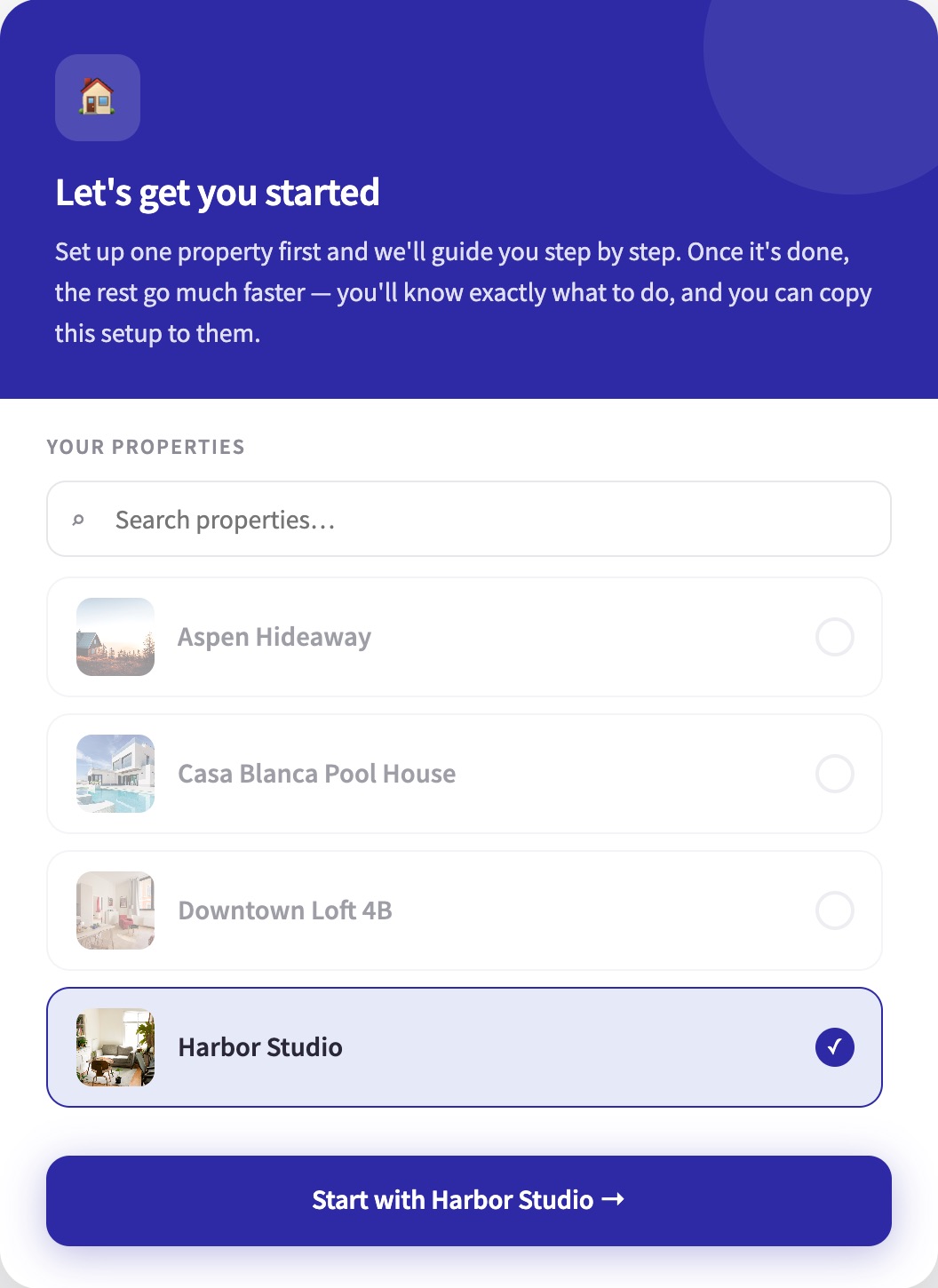
A good starter has lots of past conversations and a complete listing.
From here on, a progress bar called automation readiness shows how far along the property is, in the setup and on the ✦ AI Setup button in the Inbox. Save & return to Inbox keeps the progress at any point.
Two test questions
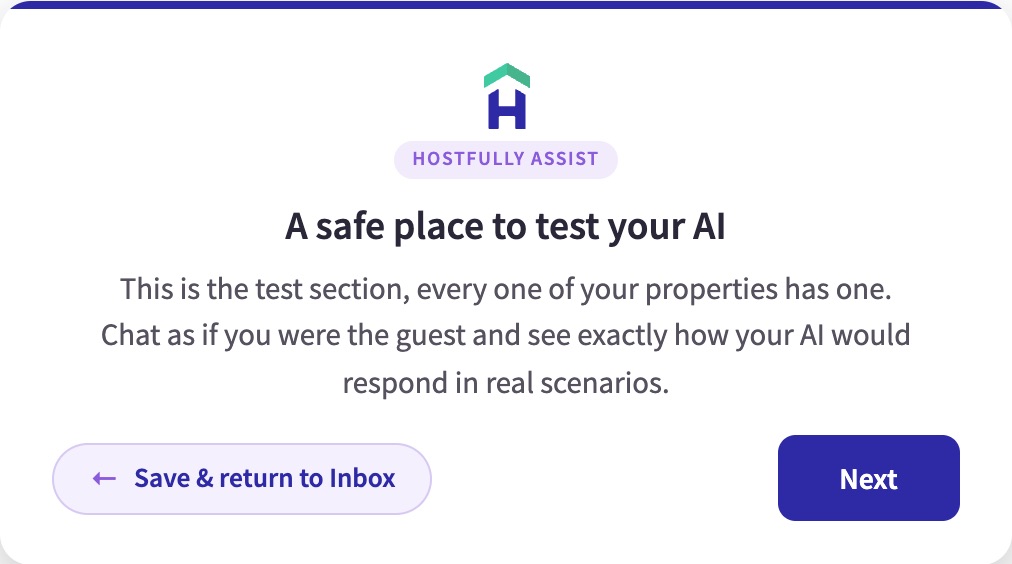
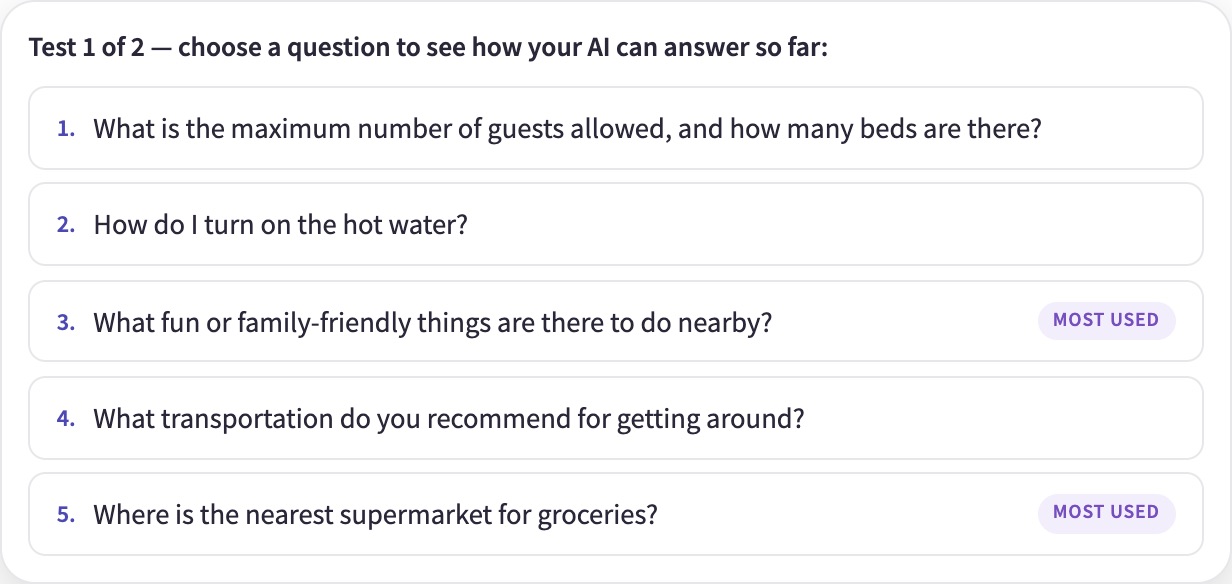
The test section opens with “A safe place to test your AI”. The host picks two common guest questions and watches Assist answer them, using only this property’s details and the host’s past conversations.
The 5 core scenarios
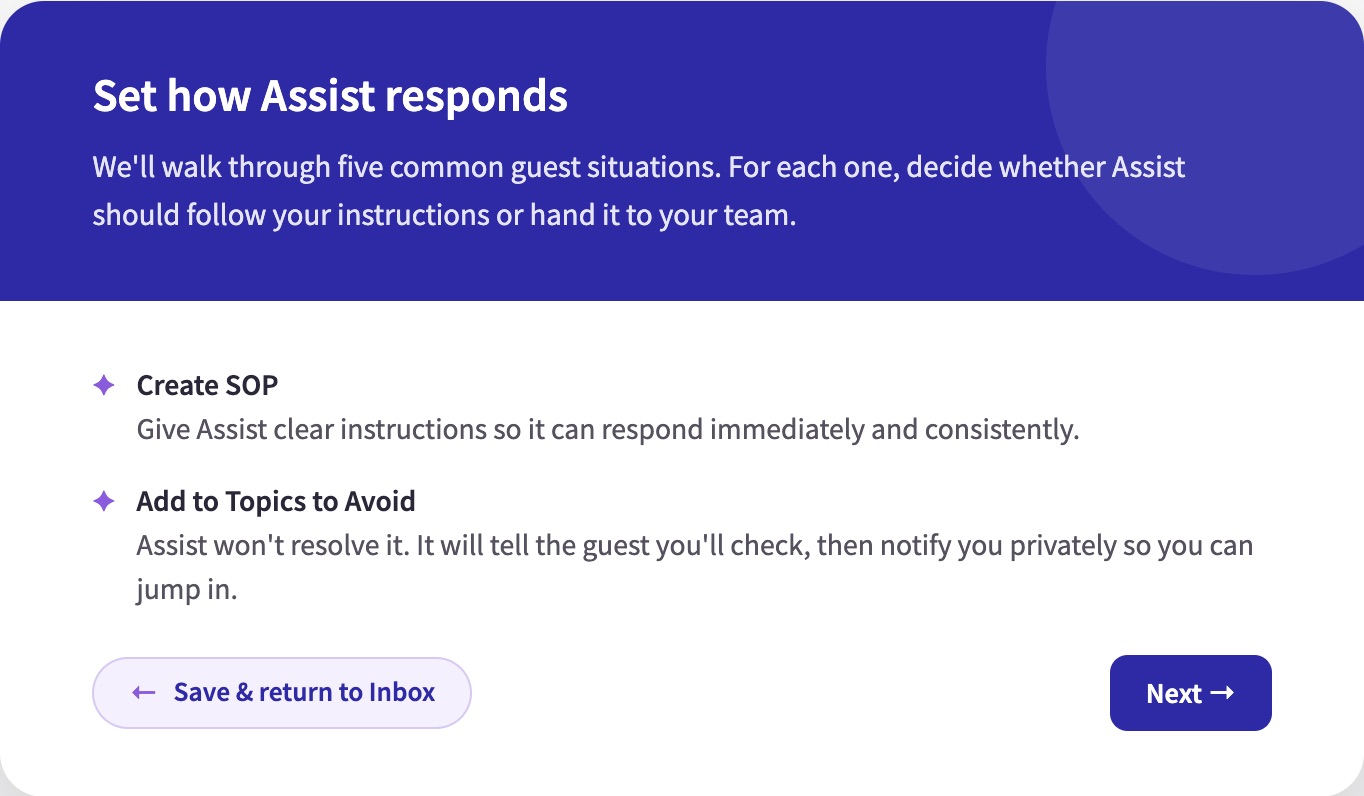
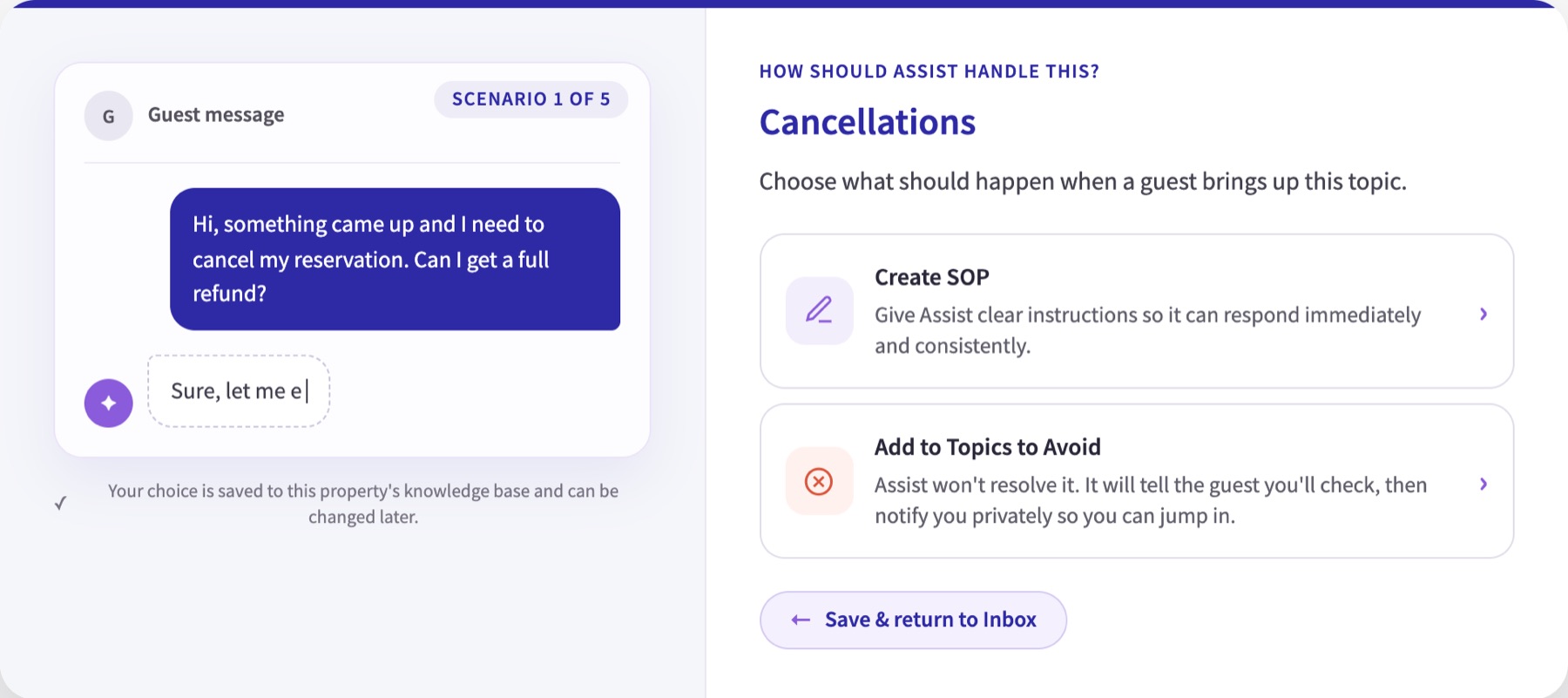
Next, Assist walks through the five situations guests raise most. For each one the host chooses what should happen:
| Scenario | When it applies |
|---|---|
| Cancellations | A guest asks to cancel their reservation or mentions needing to cancel. |
| Reservation alterations | A guest asks to change dates, add nights or add guests. |
| Cleanliness issues | A guest reports the property wasn’t properly cleaned. |
| Early check-ins & late check-outs | A guest asks to arrive early or leave late. |
| Amenity issues | A guest reports an amenity is missing, broken or not working. |
Create SOP
The host describes, in their own words, how to handle it. Assist’s AI SOP writer turns that into clear steps using only what the host wrote, and the host can edit them before saving.
Add to Topics to Avoid
Assist won’t resolve it. It replies according to Defer Behavior (chapter 6), or sends nothing if that’s set to Do not respond, and creates an Action Item so the host can step in.
Ready to turn on
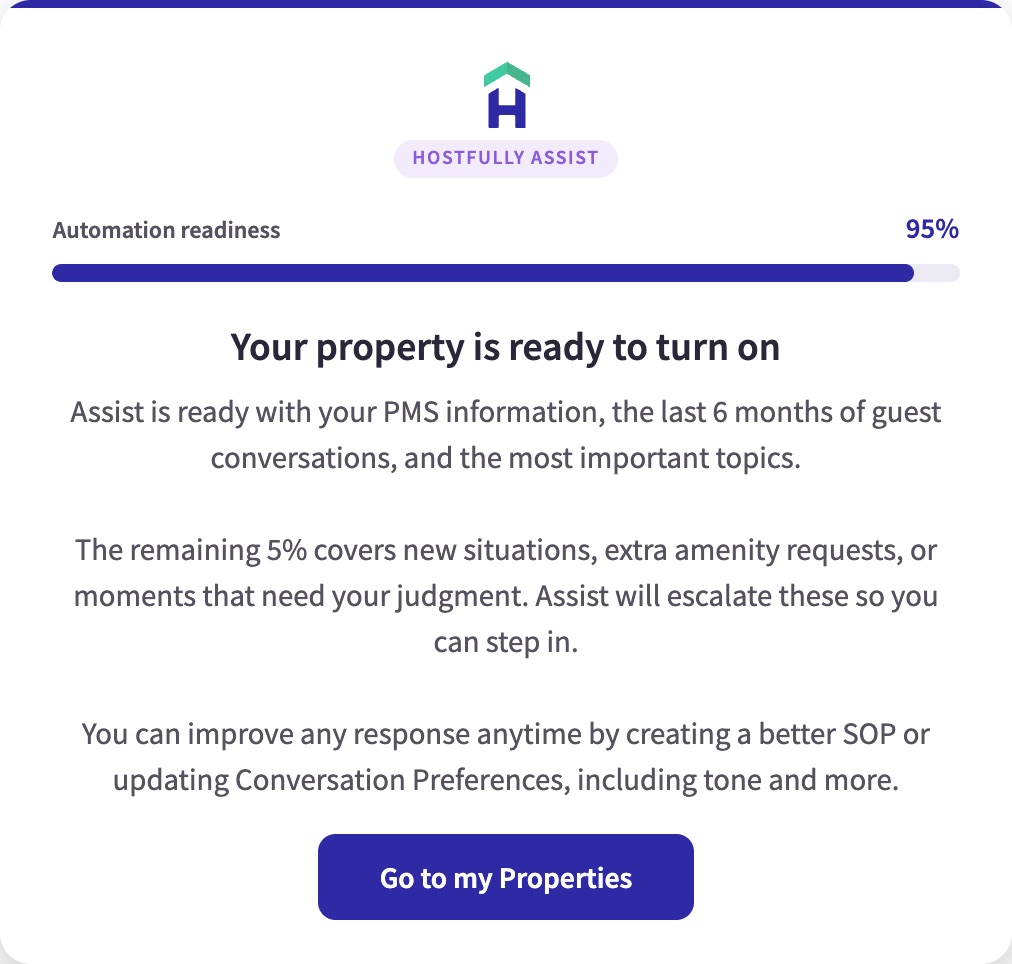
After the five scenarios, automation readiness reaches 95% and Assist shows “Your property is ready to turn on”.
- It stops at 95% on purpose, echoing the “up to 95%” from chapter 2. The remaining 5% covers new situations and moments that need the host’s judgment, and Assist escalates those.
- The card calls the property information “PMS information”: PMS means property management system, which here is Hostfully.
- Go to my Properties opens AI Setup, the next chapter, where the host reviews the rest before turning the property on.
Where Assist is set up
The guided onboarding ends in AI Setup: the page where the host reviews what Assist knows about each property, fills in what’s missing and standardizes their processes with SOPs.
Go to my Properties, at the end of the guided onboarding, opens AI Setup: the Hostfully Assist page, the one place where Assist is set up for every property. Until the first property is set up, ✦ AI Setup in the Inbox starts the guided setup. After that, it opens the Hostfully Assist page.
The Hostfully Assist page
It has four tabs. Properties is about each property. Conversation preferences (chapter 6), Notifications (chapter 11) and Plan (chapter 3) apply to all of them.
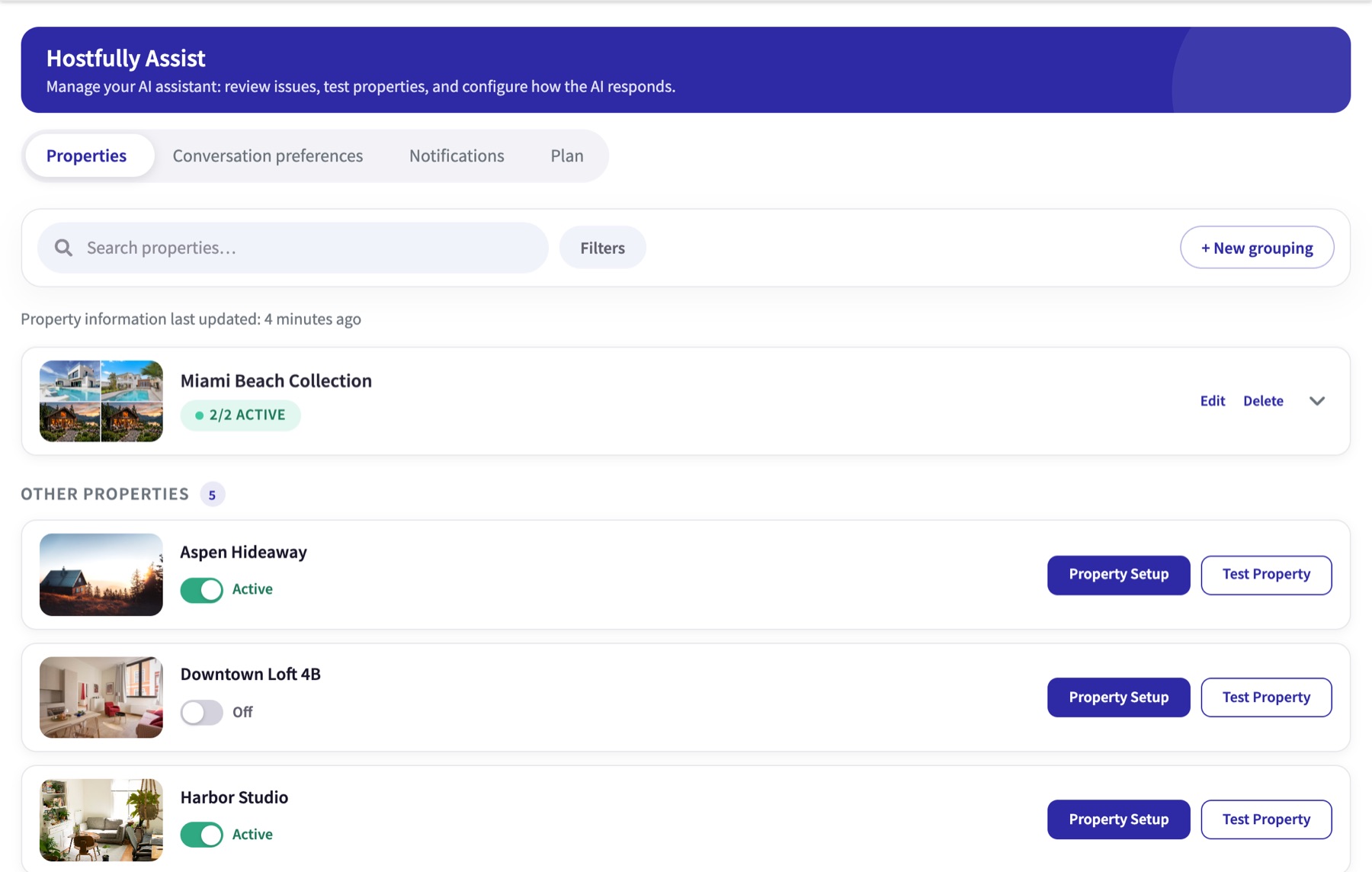
Properties lists every property switched on in Integrations, and shows when Assist last pulled their information from Hostfully. Groupings organize properties (for example “Miami Beach Collection”), and filters narrow the list by AI status, country or city. Each property has:
- Its Active / Off switch, which turns Assist on for its guests (chapter 8).
- Property Setup: everything Assist knows about the property.
- Test Property: a private chat to try Assist as a guest (chapter 7).
Property Setup
Property Setup is everything Assist knows about one property. This is where the host reviews the information Assist pulled in, fills in what’s missing and adds their own processes. It has six sections:
The first three come from the Hostfully listing. The host can’t edit them in Assist but can choose who sees each answer. The last three are where the host teaches Assist.
Basics
Where the property is: property type, street address, city, state and country, pulled from the Hostfully listing.
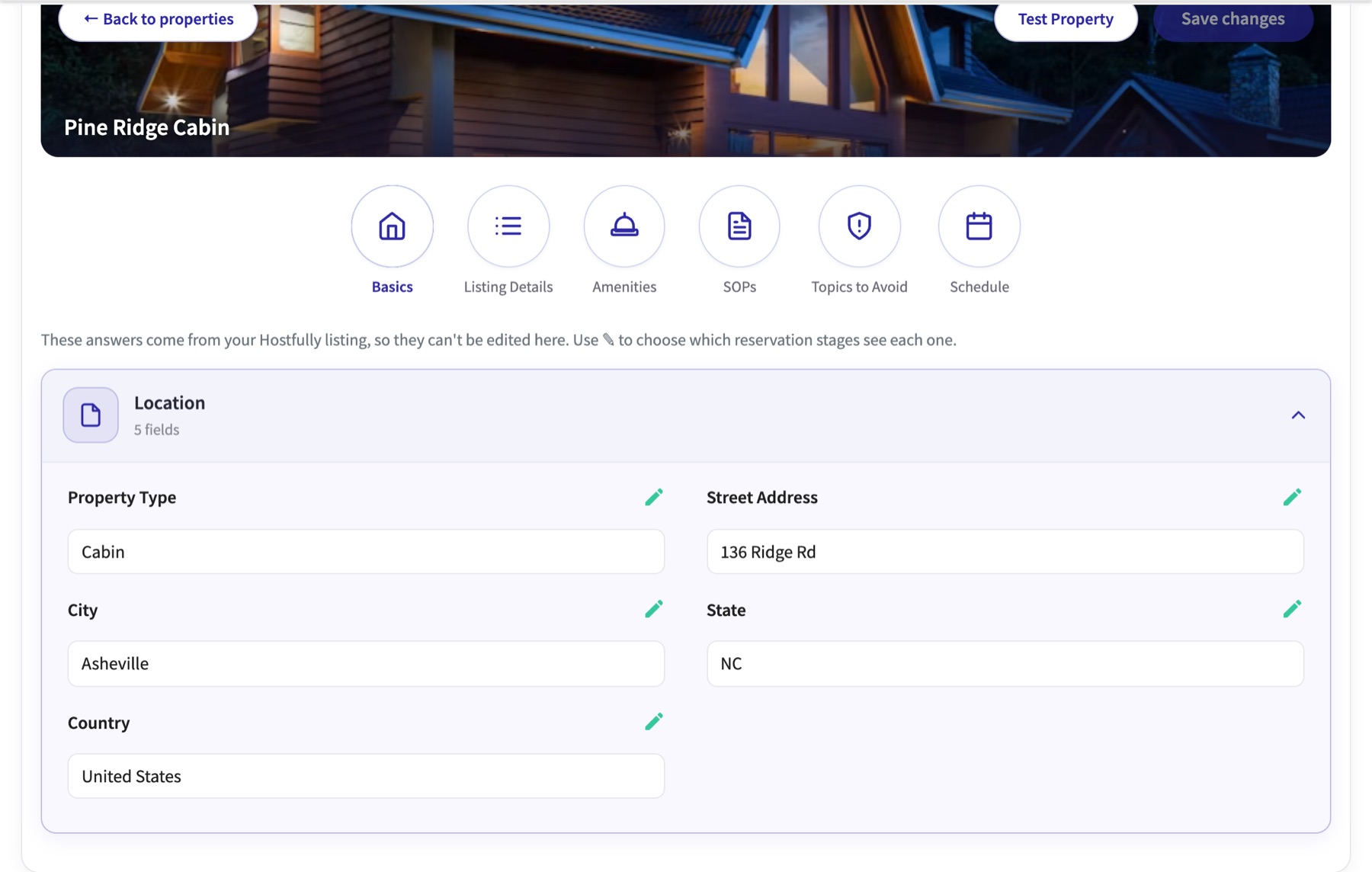
Who sees each answer
Answers from the listing can’t be edited in Assist, but the host chooses which reservation stages see each one: Future, Inquiry & Past and Current. Example: the street address and door instructions should only go to upcoming and current guests, never to someone still asking about dates.
Reservation stages across Assist
A guest is always in one of four reservation stages. Each screen labels them a little differently:
| Reservation stage | Property Setup (✎) | Test Property | Inbox tag |
|---|---|---|---|
| Inquiry | Inquiry & Past | Inquiry | Inquiry |
| Upcoming | Future | Upcoming stay | Future |
| Current | Current | Currently staying | In Stay |
| Past | Inquiry & Past | Past guest | Past Stay |
Property Setup uses one setting for Inquiry and Past: neither guest has a stay coming up or in progress, so they usually need the same answers. In the Inbox, guests arriving or leaving that day show Check-in today or Check-out today instead, and canceled reservations show Canceled.
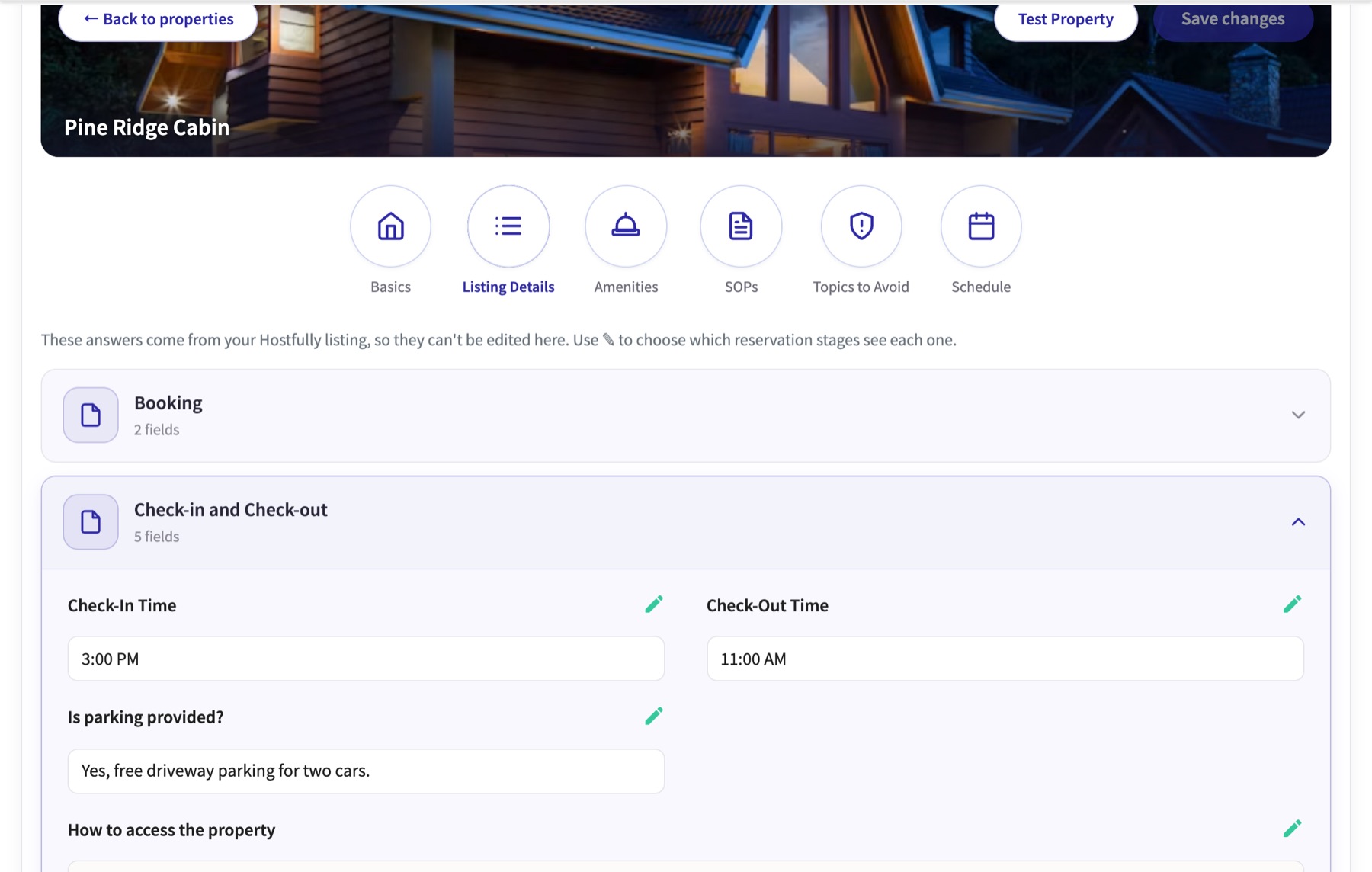
Listing Details
Everything about booking and staying, also from Hostfully, in three groups:
| Group | What’s in it |
|---|---|
| Booking | Cancellation policies (Airbnb, Vrbo, direct), how far ahead guests can book, payment terms. |
| Check-in and Check-out | Check-in and check-out times, how to find and access the property, backup access, parking, support hours. |
| Details | Minimum and maximum stay, maximum guests, minimum age, size, floors and sleeping arrangements. |
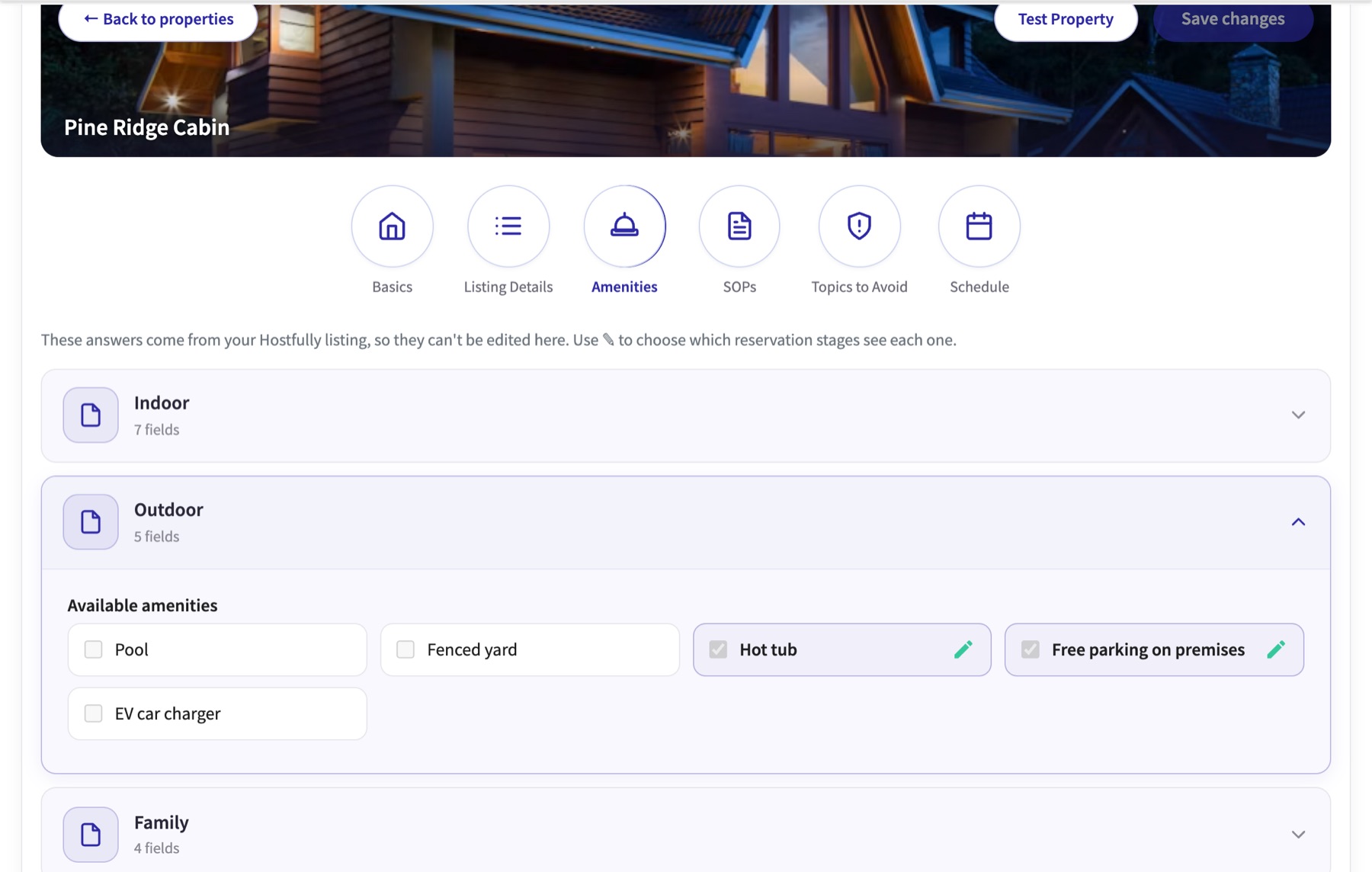
Amenities
The amenities on the Hostfully listing, in four groups: Indoor (Wi‑Fi, TV, heating, washer…), Outdoor (pool, hot tub, parking, EV charger…), Family and More (accessibility, lake or beach access…). A tick means the property has it; the ✎ on a ticked amenity shows its details, like the Wi‑Fi password or how the hot tub works, and who can see them.
SOPs
SOPs (standard operating procedures) are step-by-step instructions Assist follows for a situation. They are grouped as Check-In & Check-Out, Guest Requests, Rules, Guest Issues, Emergencies and Other, with common questions ready to fill in, like “How to handle early check-in requests” or “How to handle utility outages”. SOPs written during onboarding are saved here too.
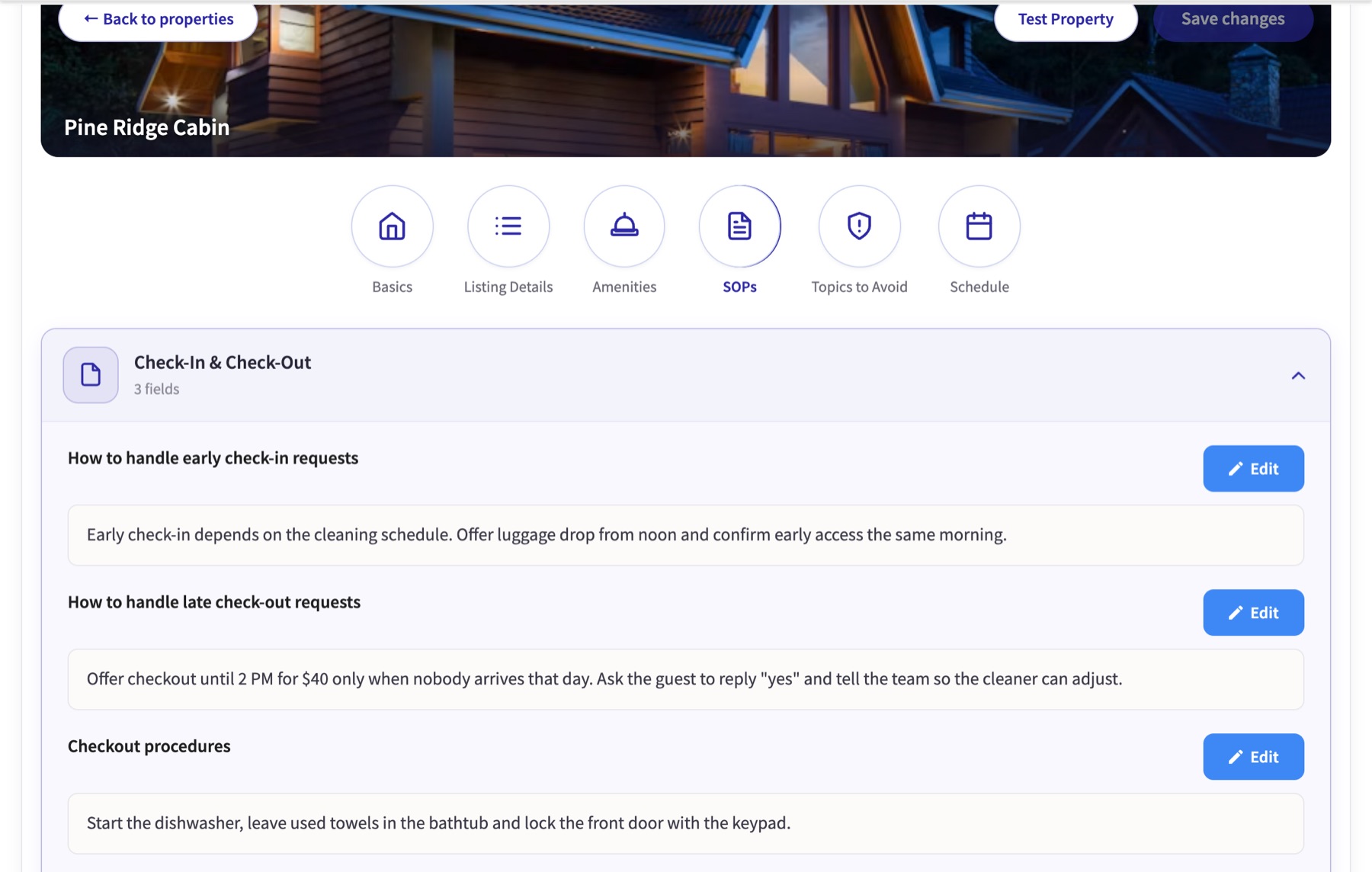
- Add item creates a new SOP with a title and instructions.
- Copy to other properties reuses an SOP across the portfolio.
- Each SOP can be limited to certain reservation stages, like every other answer.
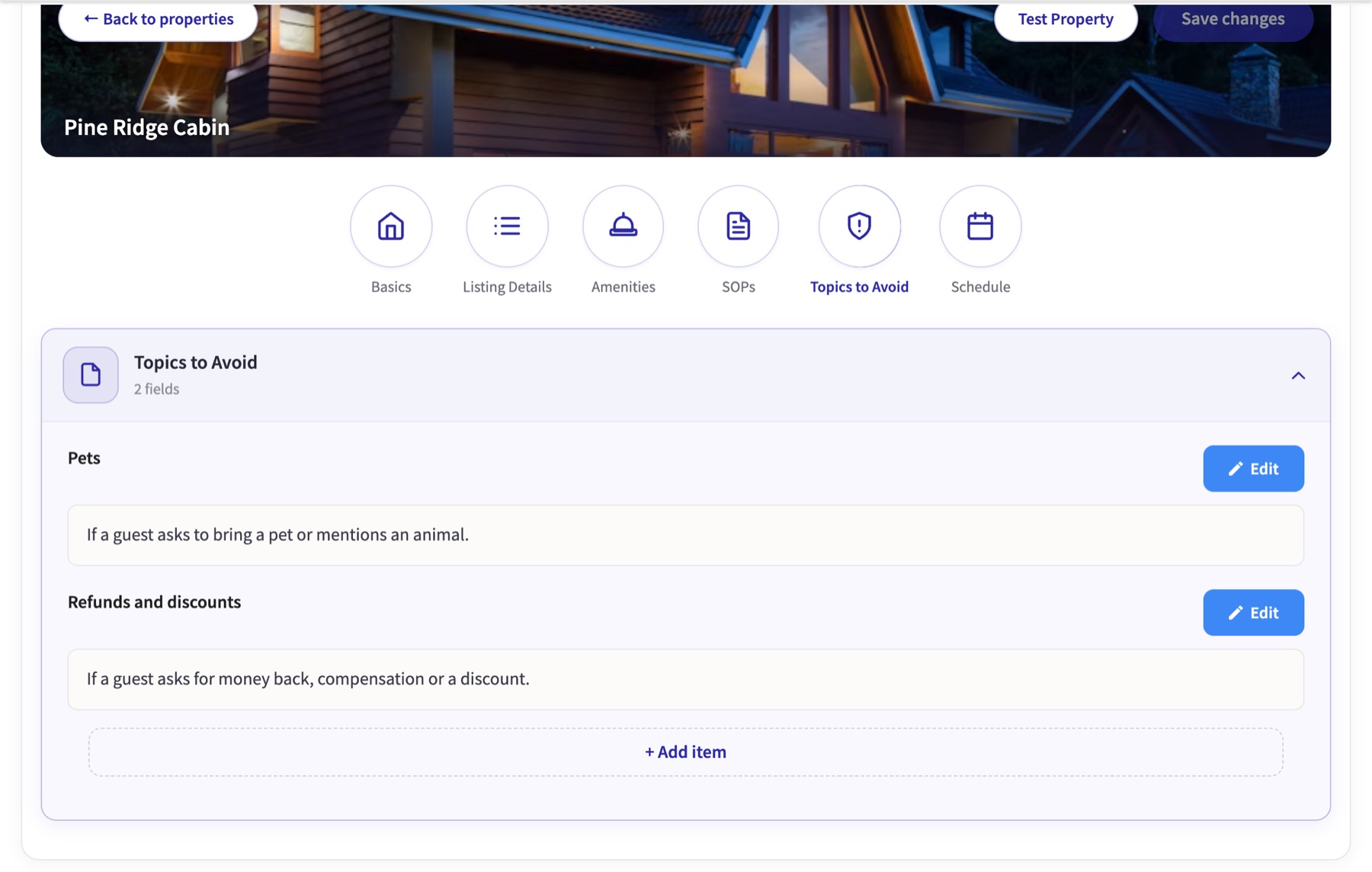
Topics to Avoid
Subjects Assist should never resolve on its own, such as pets, discounts or refunds. Each topic is described by when it applies (“If a guest asks to bring a pet…”). When a guest raises one, Assist replies according to Defer Behavior (chapter 6), or sends nothing if that’s set to Do not respond, and creates an Action Item for the host. Copy to other properties reuses a topic across the portfolio, like SOPs and the Schedule.
Schedule
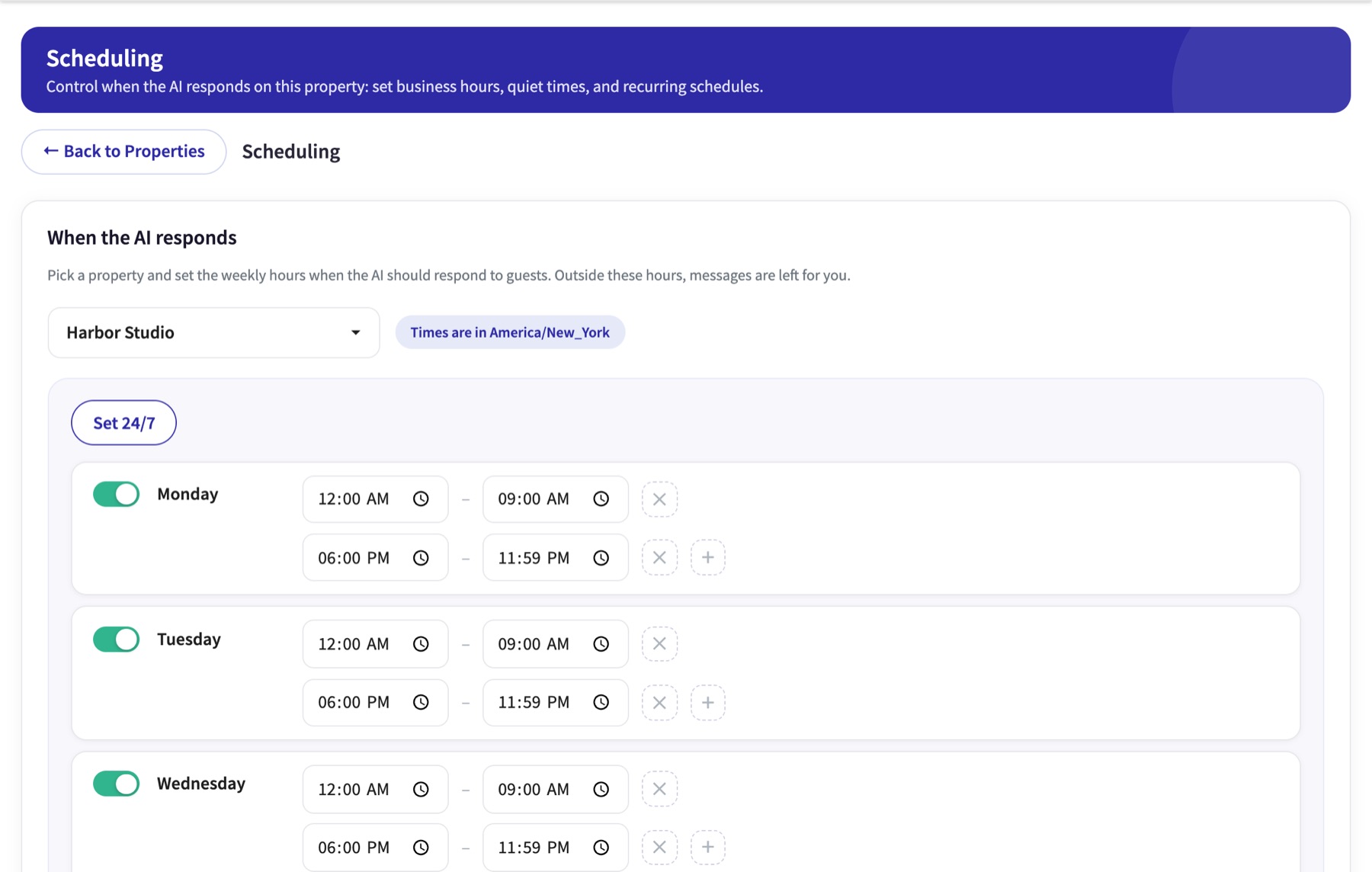
The hours Assist replies to guests for this property. By default it is 24/7. The host can set time windows for each day, for example only evenings and weekends, and copy the schedule to other properties. Outside the schedule, messages are left for the team.
All of Property Setup, in one video
Set the voice and the rules
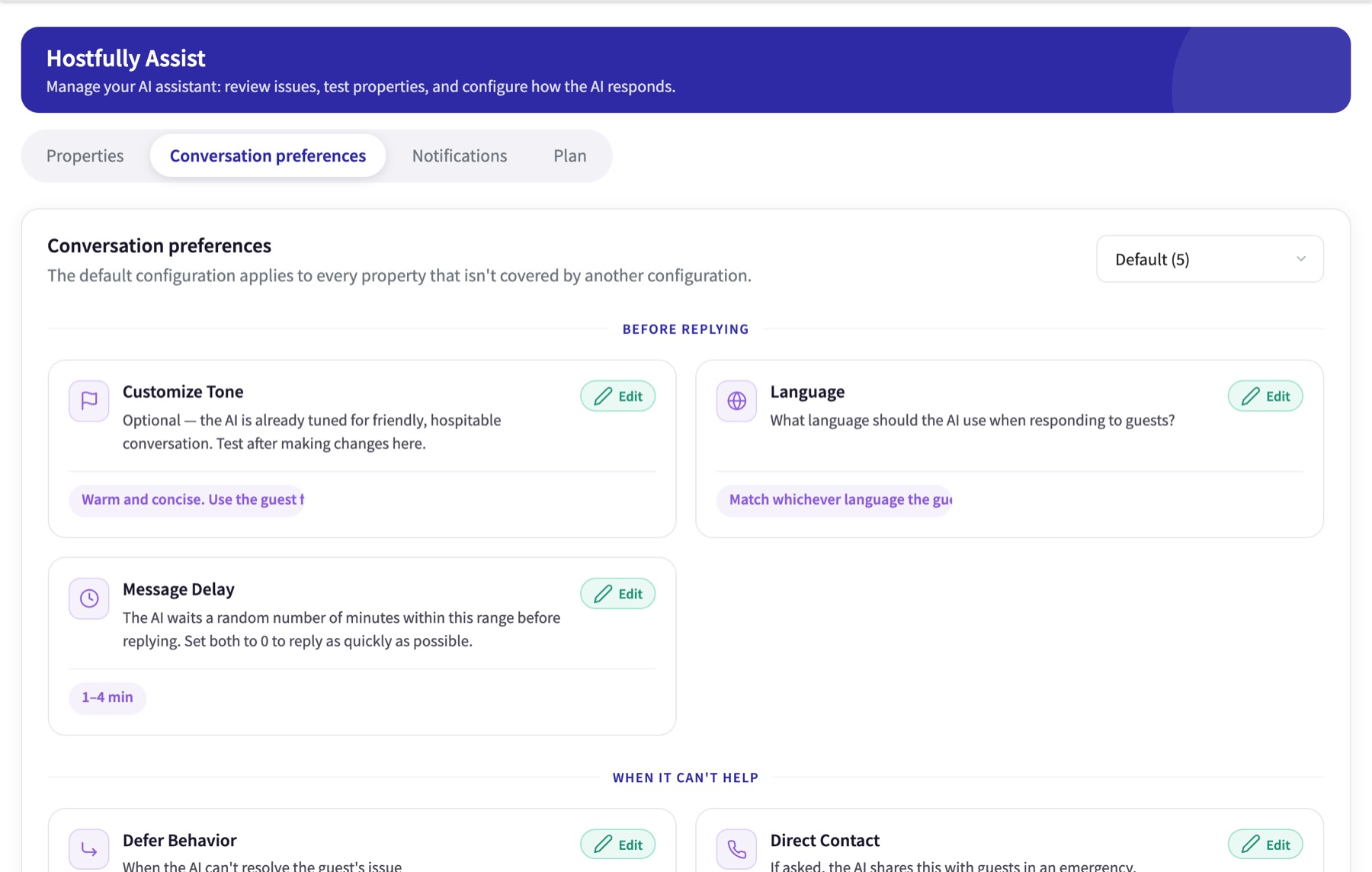
Property Setup covers what Assist knows about each property. Conversation preferences decide how it talks to guests and what it does when it can’t help. Set them once with the host, using the suggestions below.
Preferences live in Hostfully Assist → Conversation preferences. The Default configuration applies to every property, so most hosts set them once, on the onboarding call.
Decide these with the host
Defer Behavior: when Assist can’t help
The most important setting. It decides what Assist tells a guest when it can’t resolve their issue. It also decides what Assist says when a guest raises a Topic to Avoid.
| Option | What the guest hears |
|---|---|
| Defer to host | “…the host will assist once they’re back online…” |
| Defer to team | “…I’ll have to check with the team…” |
| Defer to… | “…I’ll check with our co-host and get back to you…” The host types the person or role, e.g. “our co-host” or “Sarah”. |
| Embody host Most used | “…I will check and get back to you…” Assist answers as if it were the host. |
| Share direct contact | “…please contact the host at…” Uses the Direct contact info below. |
| Do not respond | Nothing. The host is notified right away to handle it. |
SuggestedPick the option that matches who really follows up. If one person handles issues, use Defer to… with their name or role, written exactly as Assist should say it.
Direct contact info
If a guest asks, Assist shares these details in an emergency. Share direct contact gives out the same details. Assist shows a warning if Defer Behavior is Do not respond and this is empty. Even with Do not respond, Assist needs a contact to share in an emergency.
SuggestedAlways fill it in, with a phone number someone answers 24/7.
Negative sentiment
“Stop responding when guest sentiment turns negative.” Assist pauses so the host can take over, and creates an Action Item. The conversation stays Paused until someone sets it back to Active.
SuggestedOn, so an upset guest always reaches a person.
Good starting points
Message Delay
A minimum and maximum, in minutes. Assist waits a random time in that range before each reply. With 2 and 5, a reply goes out 2 to 5 minutes after the guest writes. 0 and 0 replies as fast as possible.
SuggestedA short range, like 1 to 4 minutes, so replies feel natural.
Language
Match whichever language the guest is using, or always respond in one language.
SuggestedMatch the guest’s language.
Customize Tone and Use Signature
Tone is optional: Assist is already tuned for friendly, hospitable conversation. The signature is added to the end of every AI message, e.g. “— The Guest Experience Team”.
SuggestedLeave tone empty or add one or two lines (“Warm and concise; use the guest’s first name.”), then test.
AI transparency
Can Assist tell guests it’s an AI assistant? Only if directly asked, or never.
SuggestedOnly if directly asked. Assist warns if this is Never and the negative sentiment stop is off.
Ending conversations
Assist can let a conversation close when it reaches a natural end, or always be the last to respond.
SuggestedLet it close naturally, so Assist doesn’t reply to every “thanks!”. Choose “always last” only if the host wants every message acknowledged.
“Suggested” values are our recommendations for a first setup, not product defaults.
Different rules for different properties
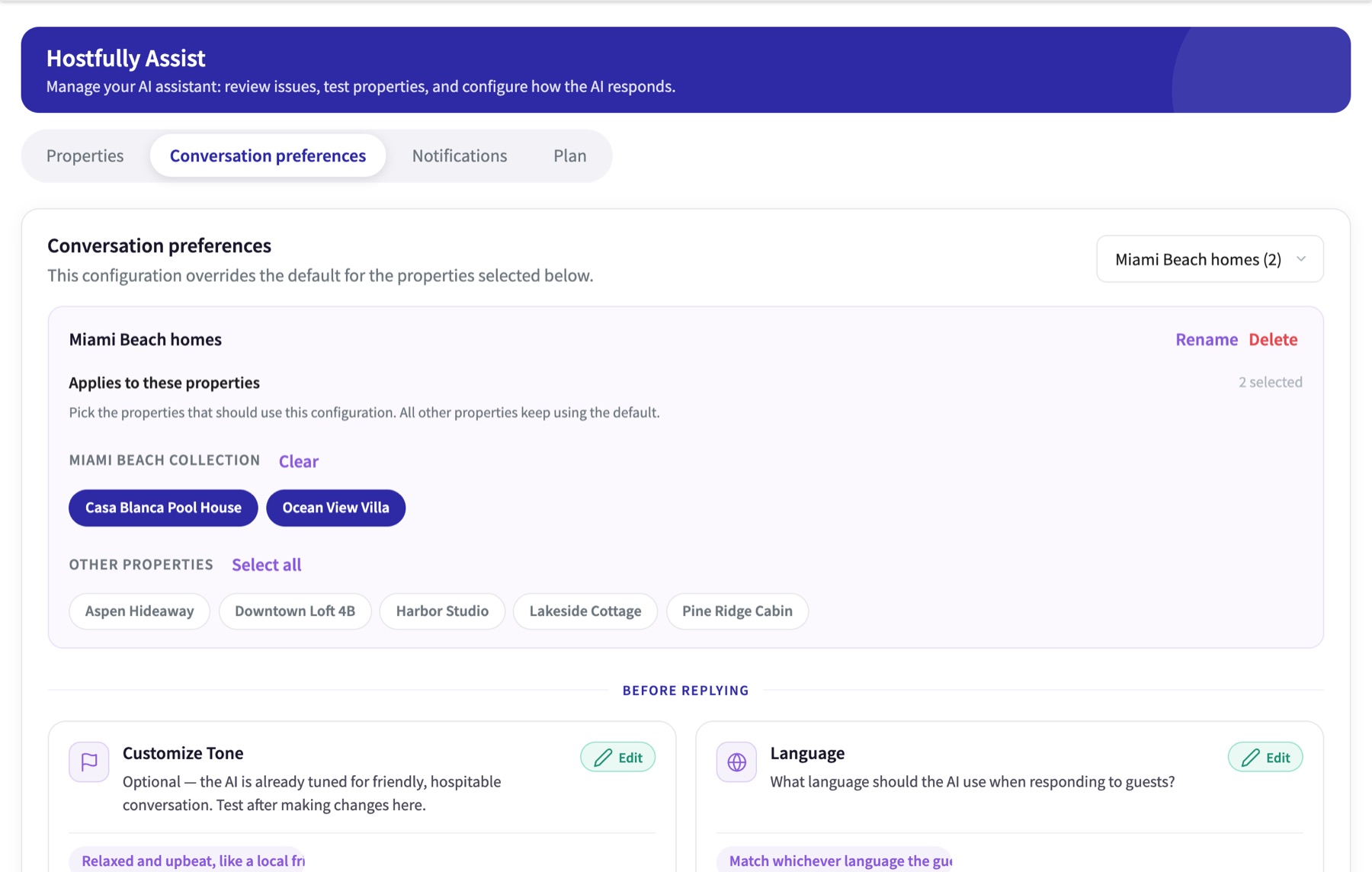
When some properties need different rules, create a named configuration (+ New configuration…) and pick the properties it applies to. Every other property keeps the Default. Example: a more relaxed tone and a local co-host for the beach houses.
Test it like a guest would
With the property set up and the preferences chosen, the host tries Assist as a guest, in a private chat, before any real guest gets an answer.
Every property has a private Test Property chat. Open it from Properties → Test Property in AI Setup. It is the safest way to see how Assist will behave before turning a property on, and after any change.
- Pick a reservation stage: Inquiry, Upcoming stay, Currently staying or Past guest. These are the same four stages as in Property Setup (see the table in chapter 5). Answers change by stage, just like with real guests.
- Write as a guest, or pick one of the example messages.
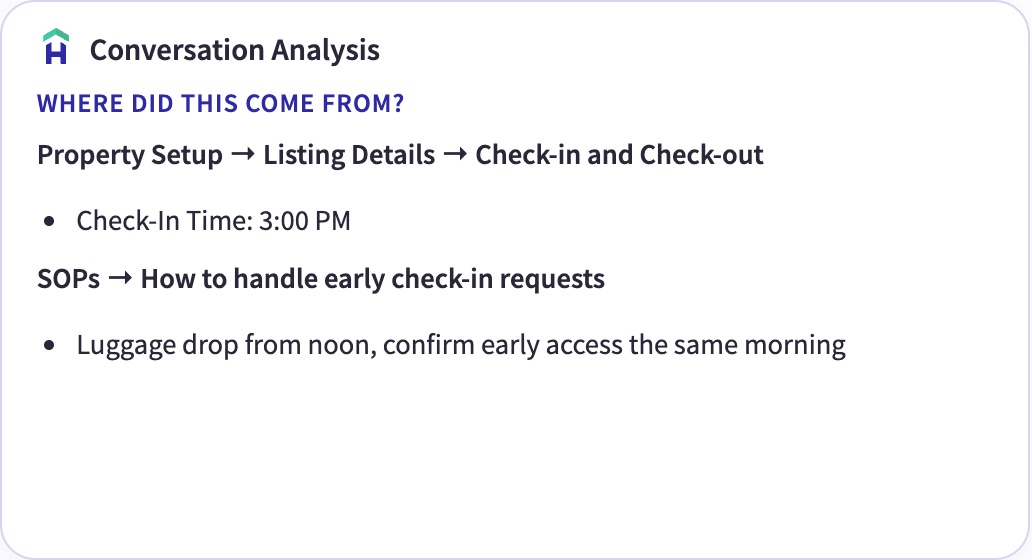
- Conversation Analysis shows, for each answer, exactly where it came from: which part of Property Setup or which SOP.
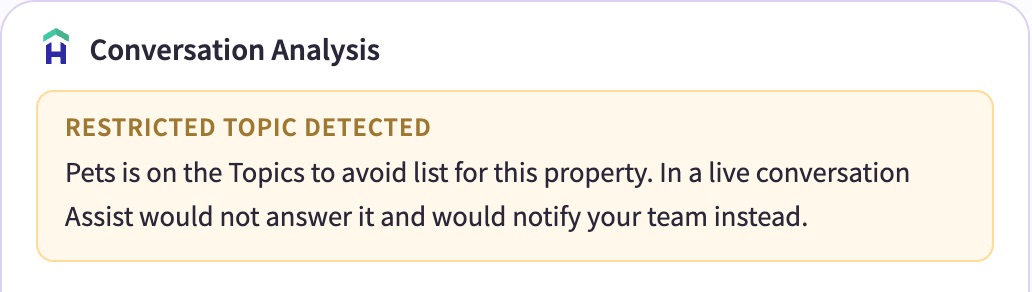
- Restricted topic detected appears when the question is on Topics to Avoid. With a real guest, Assist would send the Defer Behavior reply (or nothing, with Do not respond) and create an Action Item.
Fixing an answer on the spot
| Action | Use it when |
|---|---|
| Edit property profile | The information is wrong or missing in Property Setup. |
| Tell the AI assistant how to handle this better | The answer should follow a different process. |
| The AI assistant shouldn’t answer this at all | The topic should go to the team (adds a Topic to Avoid). |
| The answer was right, but the tone wasn’t | Only the wording needs to change. |
| Quick Add To Knowledge Base (SOPs) | Save a new SOP straight from the test. |
Turn it on, property by property
When the tests look right, one switch puts Assist to work for a property’s guests.
Properties are switched on in the Properties tab of AI Setup. Each property has an Active / Off switch.
- Active means Assist replies to that property’s guests. Off stops automatic replies; the property stays connected to Assist either way.
- A covered property is billed even when it’s Off in AI Setup. To stop billing, switch it off in Integrations → Hostfully Assist.
- If no schedule is set, turning a property on makes it reply 24/7 for every reservation stage. An existing Schedule is kept. The host can change it any time in Schedule.
- A property with setup in progress shows Continue setup and can’t be turned on until setup is finished.
- the property is Active
- the conversation isn’t Paused in the Inbox (chapter 10)
- the message is inside the property’s Schedule (chapter 5)
- the message isn’t a Topic to Avoid (chapter 5)
- the negative-sentiment stop hasn’t triggered (chapter 6)
- the conversation hasn’t reached a natural end, when Ending conversations is set to let it close (chapter 6)
Write with Assist, send as yourself
On any property covered by Hostfully Assist, whether it’s Active or Off, Assist also helps the team write their own replies, from the ✦ AI Response button in the Inbox message box. Uncovered properties show Unlock AI responses instead.
The ✦ AI Response button in the message box gives two ways to write with Assist. Whatever it writes lands in the message box; a person always reviews and sends it.
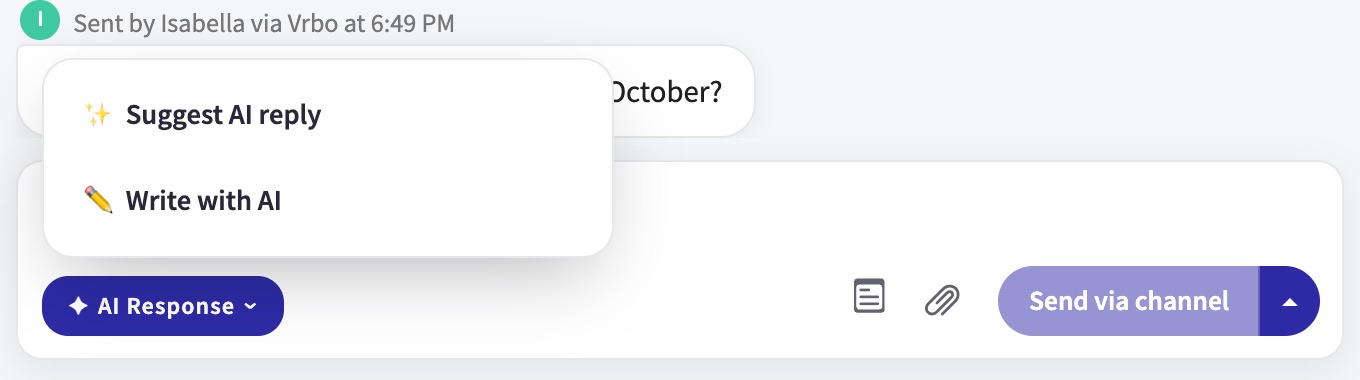
✨ Suggest AI reply
Writes the reply Assist would send to the guest’s last message. It works when the guest sent the last message, which makes it ideal while a host is still testing Assist before turning it on.
✏️ Write with AI
The host writes a draft, or just an instruction like “Politely decline the dog and suggest the boarding place in town”, then presses Generate. Assist writes the message in the host’s tone, using the conversation and the property details.
Every conversation, with the AI beside it
Once Assist is on, the team works day to day in the redesigned Inbox. This chapter goes through it from left to right: the conversation list, the conversation and the AI panel.
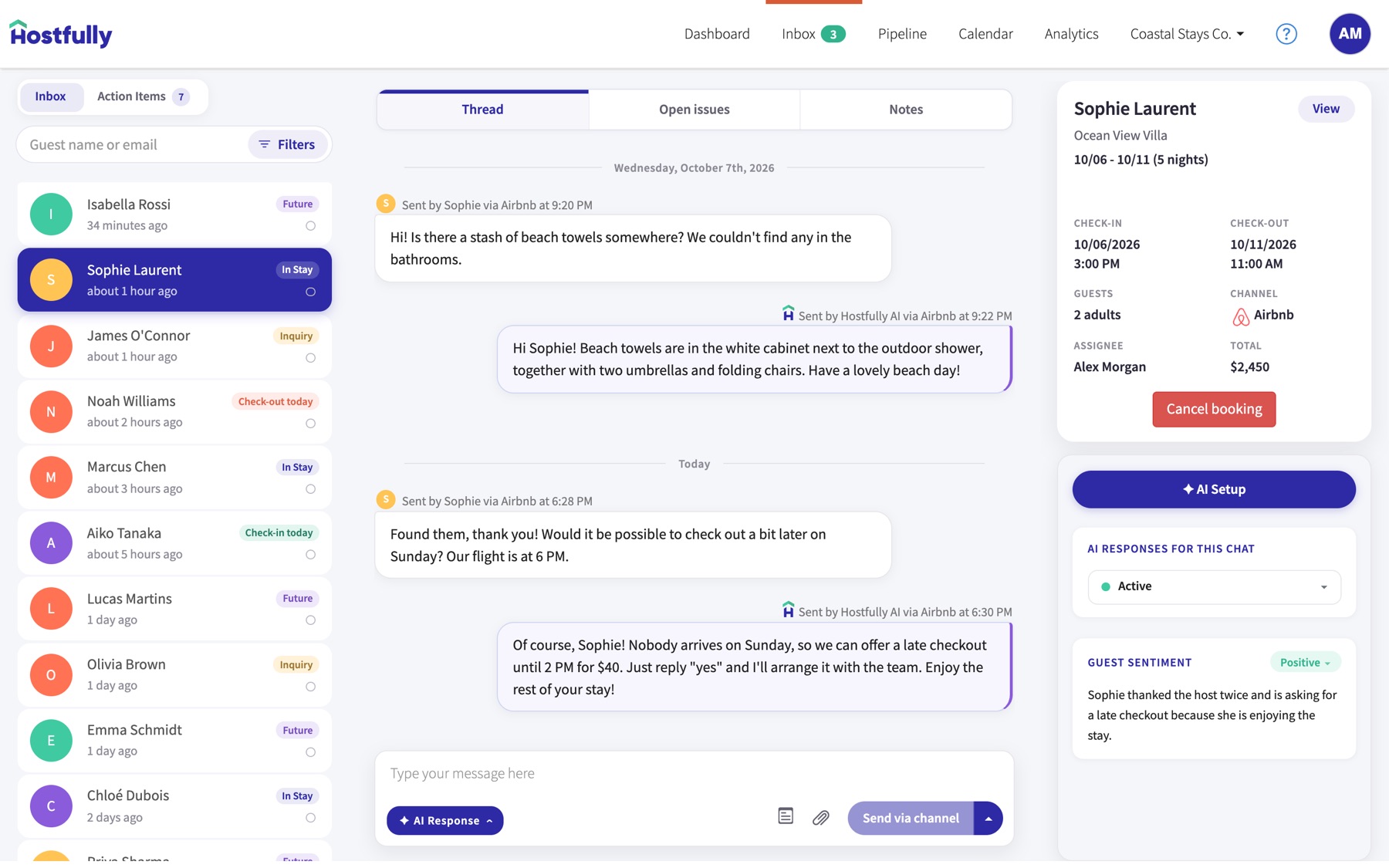
Three columns
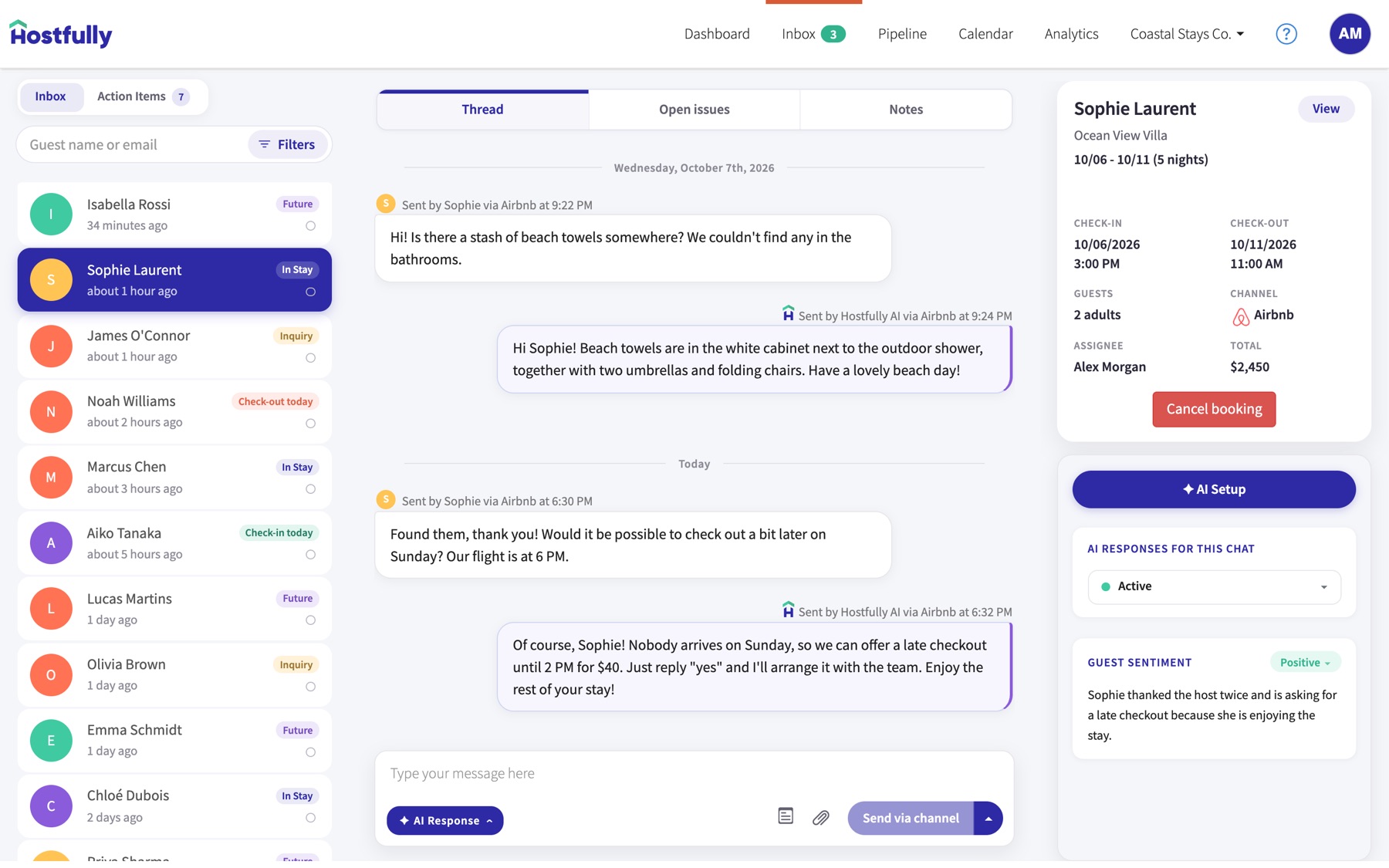
The Inbox has three columns: the conversations on the left, the conversation in the center, and the reservation with the AI panel on the right. Inbox and Action Items (chapter 11) sit side by side at the top of the list. The message box has the ✦ AI Response button (chapter 9), and ✦ AI Setup, in the right column, opens AI Setup (chapter 5). New guest messages appear on their own, without refreshing the page.
Finding the right conversation
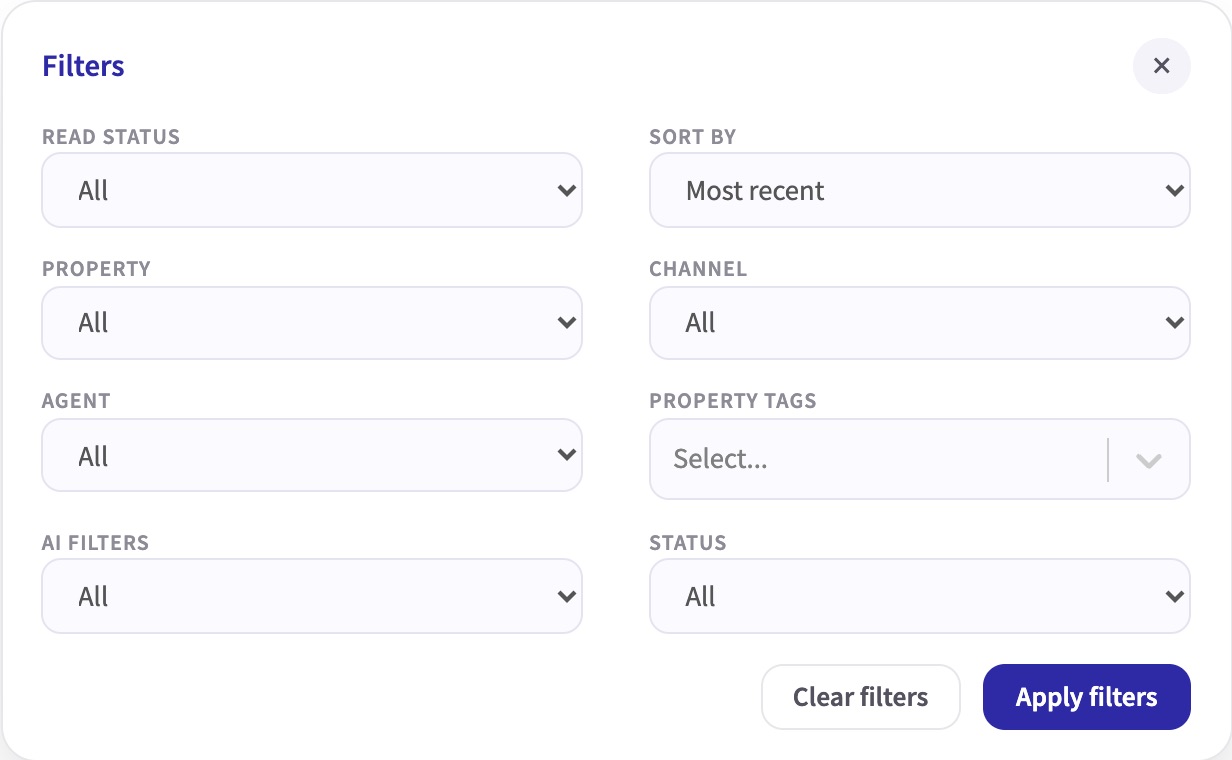
Every conversation shows its guest’s reservation stage (Check-in today In Stay Future…, see chapter 5). Filters adds new AI filters to find the conversations that need attention first: Needs attention, Upset guests, Happy guests, AI replied last, Checking in today and Checking out today.
Thread, Open issues and Notes
Above every conversation there are three tabs:

| Tab | What it holds |
|---|---|
| Thread | The conversation with the guest. |
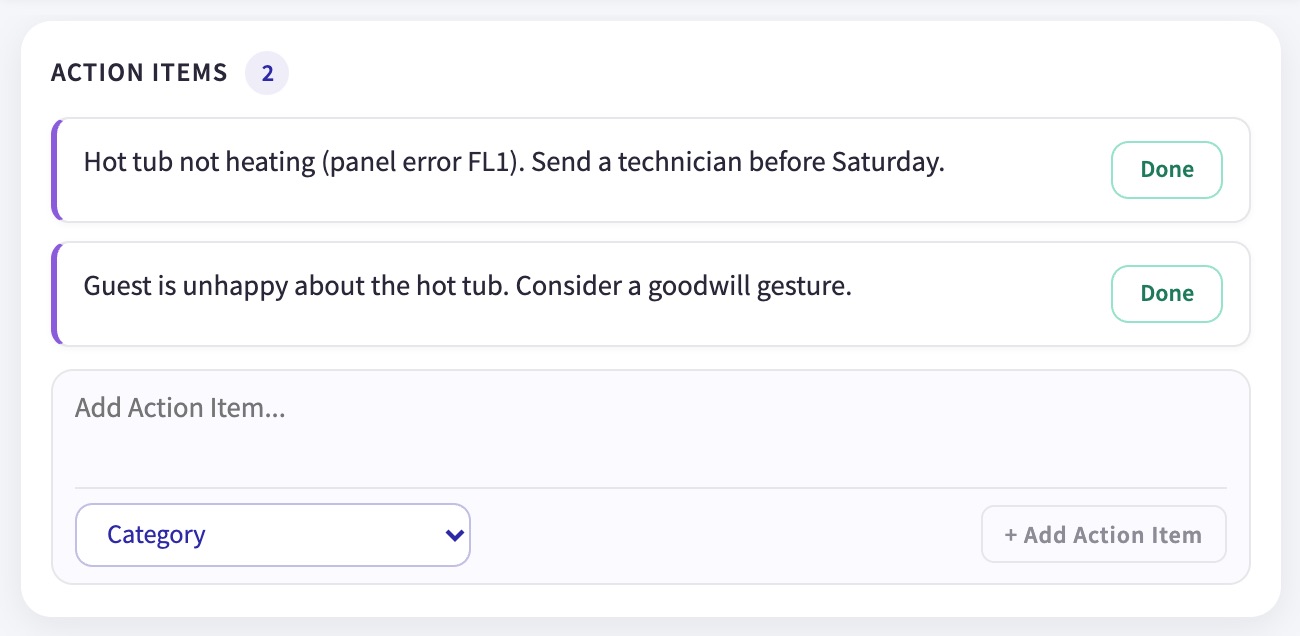
| Open issues | This guest’s Action Items. Done closes one; the team can add more by hand. |
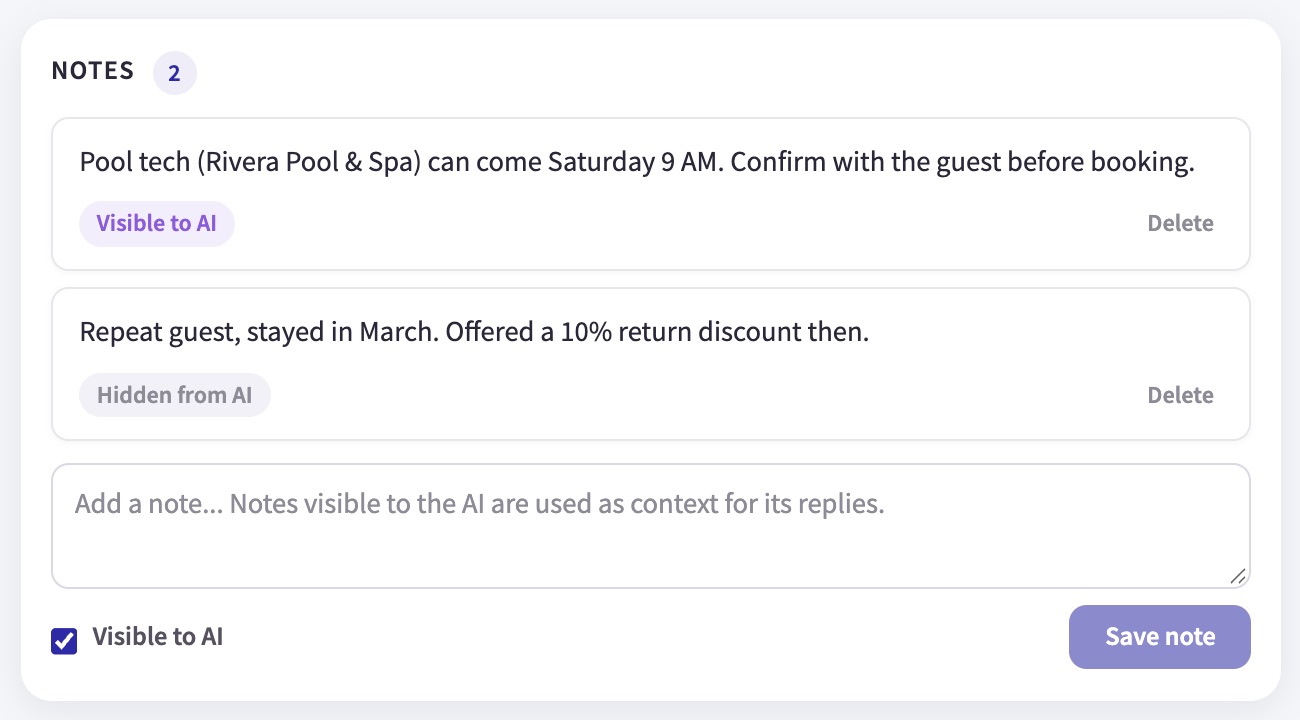
| Notes | Notes for the team. A note marked Visible to AI is used by Assist when it replies; Hidden from AI stays with the team. |
AI messages
Every reply Assist sends reads “Sent by Hostfully AI”. On a computer, pointing at the conversation reveals two buttons under each AI message:
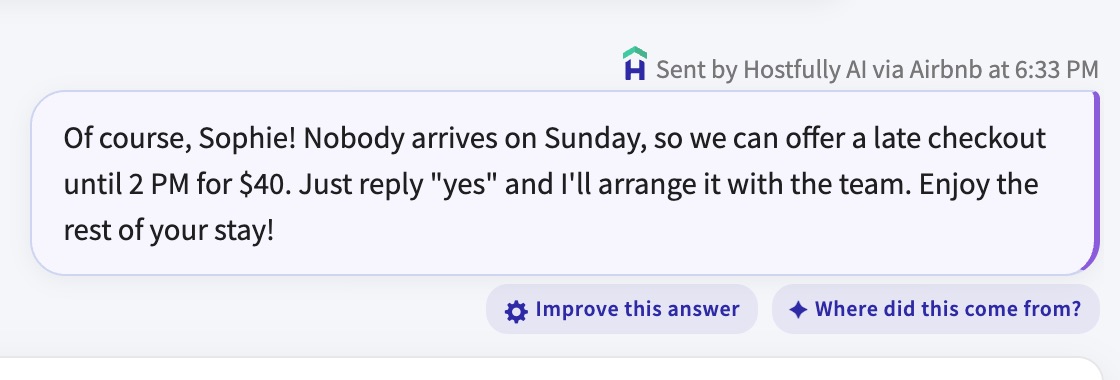
Where did this come from? shows which part of Property Setup or which SOP the reply used.
Improve this answer has four options. Three are the same ways to teach Assist as in Test Property: how to handle the situation, a topic it shouldn’t answer, or the tone. The fourth, Report a problem, sends feedback to the Hostfully team only and changes nothing about the replies.
When Assist doesn’t answer
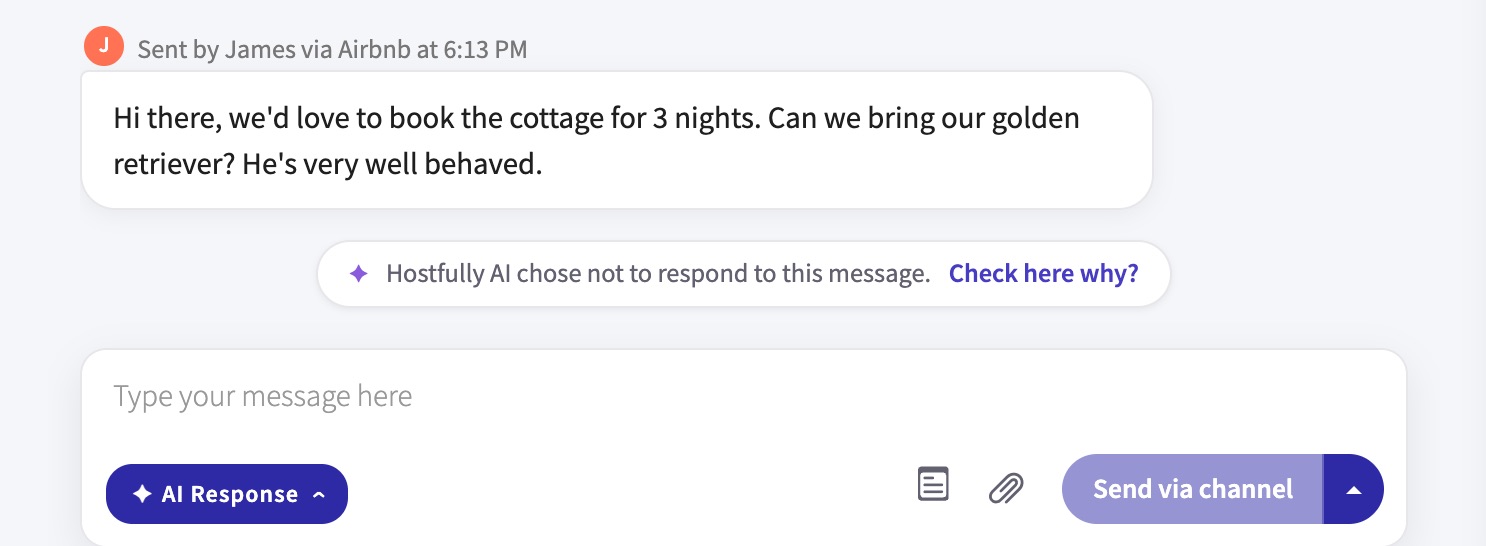
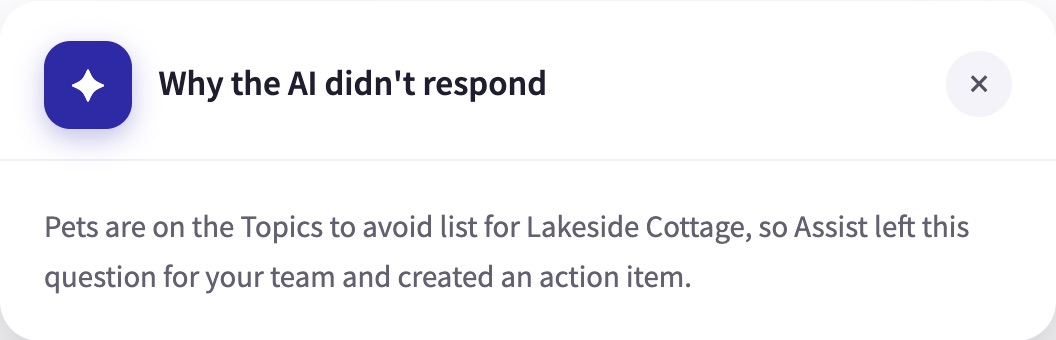
When Assist sends nothing in reply to a guest message, a banner appears under it: “Hostfully AI chose not to respond to this message. Check here why?” That happens, for example, when Defer Behavior is Do not respond (including a Topic to Avoid with Do not respond), when the negative-sentiment stop has paused the chat, or when the message is outside the Schedule. Check here why? shows the reason.
AI status and pausing
| The panel shows | What it means |
|---|---|
| Active | Assist answers this guest automatically. |
| Paused with “Off until 6:00 PM” or “Off until you turn it back on” under it | This chat only is paused, for 15 minutes, 1 hour, 24 hours, or until someone turns it back on. Timed pauses end on their own and Assist answers again. |
| Off with “AI is turned off for this property” | The whole property is Off. Choosing Active here turns the property back on. |
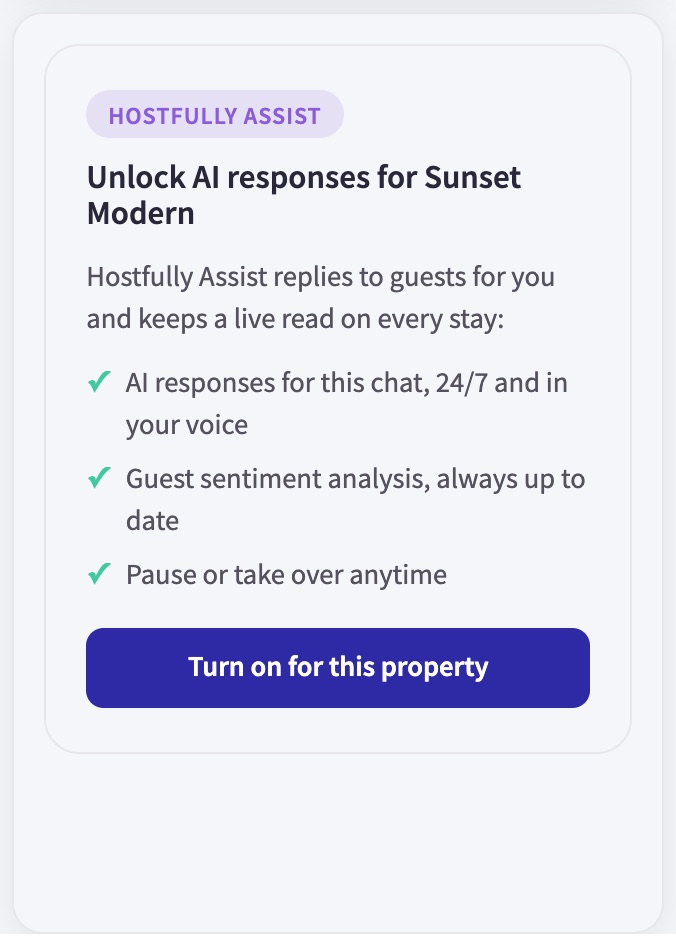
When a property isn’t covered by Hostfully Assist, the panel shows Unlock AI responses instead. Turn on for this property opens the integration page.
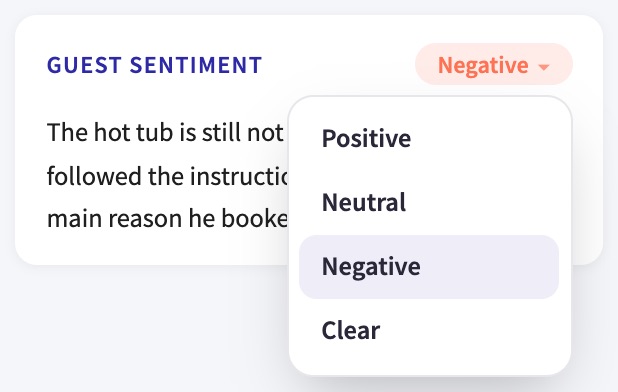
Guest sentiment
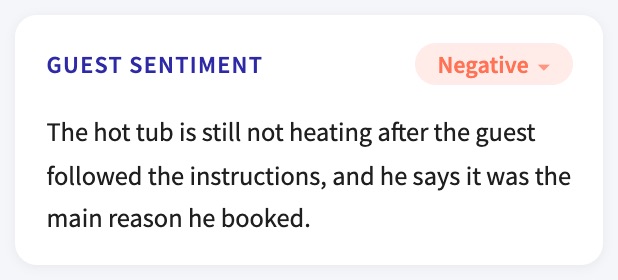
Assist reads every conversation and tags it Positive Neutral or Negative, with a one-line reason. It adapts its tone to the guest’s mood, and it can stop replying when a guest turns negative (chapter 6). The conversation stays Paused until someone sets it back to Active. The team can change the sentiment and add context; Assist then re-checks the conversation.
What needs a person, in one list
When something in a conversation needs a person, Assist flags it as an Action Item and alerts the team. This chapter covers the list, and how to tune what gets flagged.
What an Action Item is
An Action Item is something in a guest conversation that needs a person: a broken hot tub, a pet request, an emergency. Assist creates them automatically, and the team can add their own with Add Item.
- Where: in Action Items, next to the Inbox, and in each conversation under Open issues.
- Each item has a guest, a property, a description, a category and a priority (High, Medium, Low or No priority).
- Status moves from To do to In progress to Completed.
- Open the guest conversation from any item to answer the guest straight away. Filter by status, property or category, or group items by any of them.
How it works
Detect
A guest message matches a built-in rule or one of the host’s Detection Rules.
Sort
Assist picks the category that fits best, with its priority.
Notify
The item appears in Action Items and Open issues, and the team is alerted.
Resolve
The team handles it and marks it Completed.
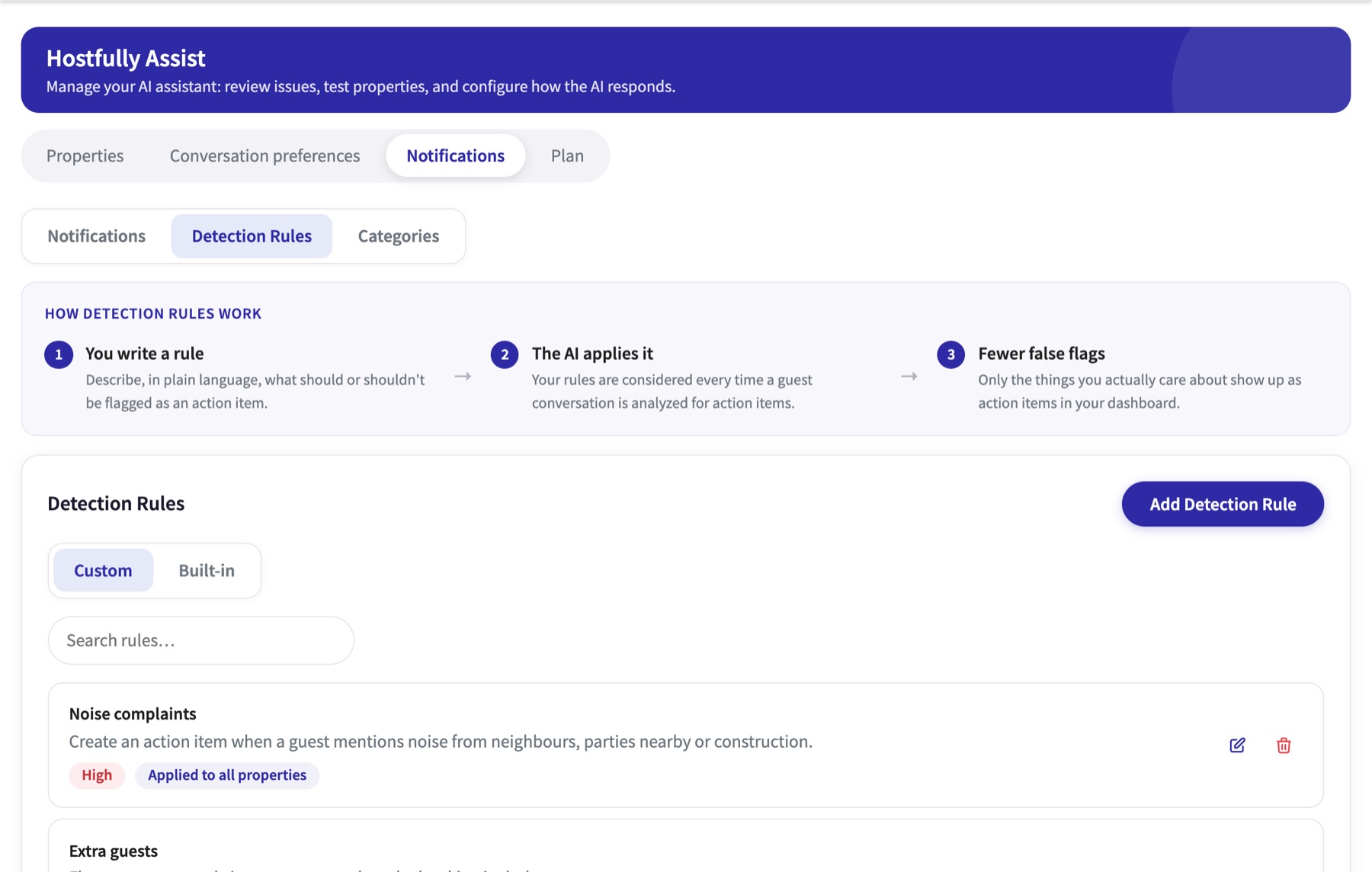
Detection Rules: what gets flagged
In Hostfully Assist → Notifications → Detection Rules. Three built-in rules are always active:
| Built-in rule | Flags |
|---|---|
| Questions the AI can’t answer | A question not covered by past conversations or the property information. |
| Emergencies | Fires, accidents, injuries, or any situation where a guest reports immediate danger. |
| Topics to avoid | Any topic marked as off-limits in Property Setup, as soon as a guest brings it up. |
Hosts add custom rules to flag more, or less. A rule is written in plain language, the way you’d explain it to a team member, with an optional name, a priority, and the properties it applies to (all or specific).
“Always flag mentions of a broken appliance.”
Categories: how items are sorted
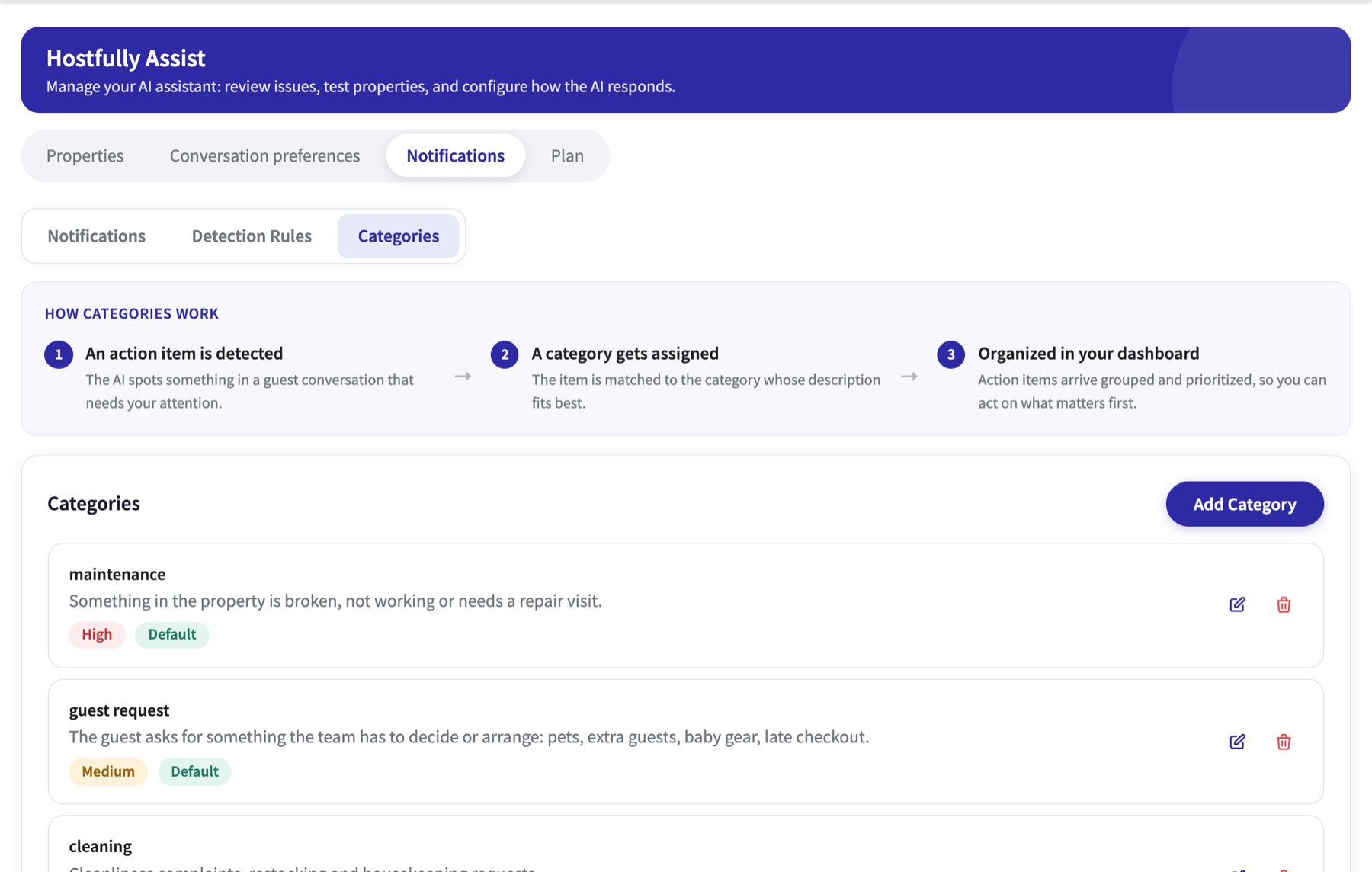
Each category has a name, a priority and a description that answers “When should this category be assigned?” Assist uses that description to choose the category for each item, so the more specific it is, the better the sorting. Categories marked Default come ready to use.
“Anything involving a broken, damaged, or malfunctioning item at the property.”
Notifications: who hears about it
There are no recipients or channels to set up. Every Action Item does two things on its own:
- It appears in the Hostfully Inbox, linked to the conversation.
- The agency’s Hostfully users are alerted automatically.
The Notifications tab explains this, and holds the Detection Rules and Categories tabs.
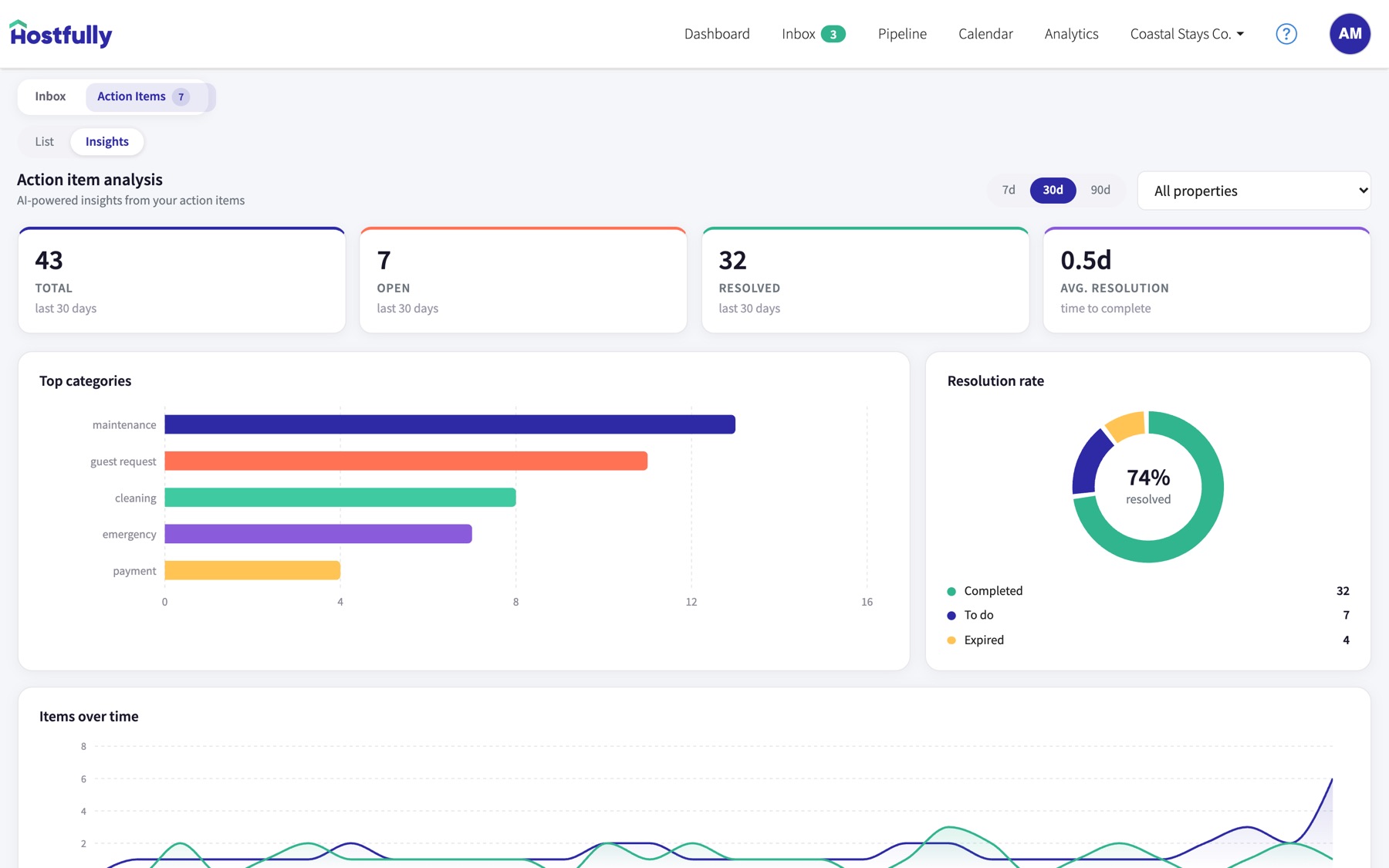
Insights: spotting patterns
Insights, next to the list, sums up the last 7, 30 or 90 days, for all properties or one property or grouping: open items, new this week, properties affected and the top category, plus resolution rate, average time to resolve and items over time.
Best practices with hosts
How to present Assist, how to run an onboarding call, and how to answer the questions hosts ask.
Presenting Assist to a host
Start from the host’s day, not from the technology. Most hosts feel the pain of repetitive questions, late-night messages and slow replies.
| Say this | Show this |
|---|---|
| “It answers up to 95% of your guest messages, day and night.” | A conversation answered by Hostfully AI in the Inbox. |
| “It already knows your properties.” | Property Setup: Basics, Listing Details and Amenities, straight from the Hostfully listing. |
| “It learns how you answer.” | It studied the last 6 months of conversations before sending anything. |
| “You stay in control.” | Topics to Avoid, pausing a chat, the schedule, and drafts a person sends. |
| “You always see why.” | Where did this come from? on any AI reply. |
| “Try it free.” | 14 days free, then $9 per property per month, only for covered properties. |
Common objections
“I don’t want a robot talking to my guests.”
Assist writes in the host’s tone, signs with their signature and can be set to never say it’s an AI. Hosts can start with Suggest AI reply, so every message is approved before it’s sent, and turn Assist on only when they’re comfortable.
“What if it says something wrong?”
Assist only uses the property’s details, the host’s SOPs, past conversations and notes marked Visible to AI, and shows the source of every answer. It never resolves anything on Topics to Avoid: it follows Defer Behavior and creates an Action Item. And the host can test every property privately before going live.
“I have a lot of properties.”
Set up one property with the guided onboarding, then copy SOPs, Topics to Avoid and schedules to the rest. Properties can be organized in groupings, and conversation preferences can be shared across selected properties with a named configuration (chapter 6).
“How much does it cost?”
14 days free, then $9 per property per month, only for the properties the host chooses to cover. Sales can offer a discount.
Running an onboarding call
Before the call
Confirm the host’s properties have complete listings in Hostfully: check-in and access, cancellation policy, sleeping arrangements and amenities with details (Wi‑Fi, parking, hot tub…). Assist reads them from there.
Switch on and confirm
Integrations → Hostfully Assist, pick the properties, review Pricing & Setup together, start the trial.
Tour and starter property
Let the host click through the tour, then choose their busiest property as the starter.
The five scenarios
Spend the most time here. Help the host write real SOPs in their own words, and add sensitive topics (pets, refunds, discounts) to Topics to Avoid.
Test together
Ask three or four real guest questions in Test Property, at different reservation stages. Fix anything that looks off on the spot.
Preferences and schedule
Set Defer Behavior, Direct contact info and the negative sentiment stop, then tone and signature. Agree on 24/7 or after-hours only.
Choose how to go live
Let the host decide: switch the property to Active now, or start with Suggest AI reply for a few days and go Active once they’re comfortable. Either way, show the AI panel, sentiment, Open issues and Action Items.
Support playbook
The questions support hears most, and what to check first.
“Assist didn’t answer my guest.”
Check, in order:
- the chat isn’t Paused (AI panel)
- the property is Active (Properties)
- the message is inside the Schedule
- the guest isn’t negative with the sentiment stop on
- there’s no “chose not to respond” banner; Check here why? explains it
“It says Off until 6:00 PM.”
That chat is Paused, not the whole property: the dropdown shows Paused and the line under it says when the pause ends. Timed pauses end on their own; choosing Active resumes now.
“Assist stopped replying to an upset guest.”
The sentiment stop paused that chat. Handle the guest, then set the AI panel back to Active.
“It says Unlock AI responses for this property.”
The property isn’t covered by Hostfully Assist. Turn on for this property opens the integration page.
“Why am I charged for a property that’s Off?”
Off only stops replies. Billing follows coverage in Integrations → Hostfully Assist. Switch it off there to stop billing.
“My property isn’t in Hostfully Assist.”
New properties take a minute or two to appear. Confirm it’s switched on in Integrations → Hostfully Assist, then reload.
“I can’t turn a property on.”
Its guided setup was started but not finished. Click the switch or Continue setup.
“My setup progress is gone.”
Progress is saved to the account. Check the host is signed in to the right Hostfully account.
“I can’t edit the check-in time or the Wi‑Fi password.”
Basics, Listing Details and Amenities come from the Hostfully listing. Edit the listing in Hostfully; the Properties page shows when Assist last pulled it.
“Assist gave a wrong answer.”
Use Where did this come from? to see the source, then Improve this answer or fix the Property Setup. Re-check it in Test Property.
“Suggest AI reply is greyed out.”
It only works when the guest sent the last message. Use Write with AI instead.
“The tour never appeared.”
It waits for the first synced conversations and doesn’t run on phone-sized screens. Open the Inbox on a computer.
“Airbnb won’t send my attachment.”
Airbnb allows one attachment, with no text, in supported file types. Send the file and the text separately.
Glossary
| Term | Meaning |
|---|---|
| Action Item | Something in a guest conversation that needs a person, created by Assist or by the team. |
| Automation readiness | Setup progress for a property, from 10% to 95%. |
| Category | How Action Items are sorted. Assist picks the category whose description fits best. |
| Conversation Analysis | The panel in Test Property that shows where each answer came from. |
| Defer Behavior | What Assist tells the guest when it can’t solve the issue, or when the guest raises a Topic to Avoid. |
| Detection Rule | A plain-language rule that decides what gets flagged as an Action Item. |
| Grouping | A named set of properties, used to organize and filter. |
| Insights | Trends in Action Items over 7, 30 or 90 days. |
| Off | The whole property isn’t answering guests. It’s still billed while it’s covered in Integrations. |
| Paused | One conversation isn’t being answered, for a set time or until turned back on. |
| PMS | Property management system. Here, Hostfully. |
| Property Setup | Everything Assist knows about a property. |
| Reservation stage | Inquiry, Upcoming, Current or Past. Decides which answers a guest gets. |
| Sentiment | Positive, Neutral or Negative, with a short reason. |
| SOP | Step-by-step instructions Assist follows for a situation. |
| Topics to Avoid | Subjects Assist won’t resolve: it follows Defer Behavior and creates an Action Item. |
Your progress and certificate
Pass the quiz at the end of every chapter, with every answer right, to complete the course.
Your course progress is saved in this browser only.